AgentUI
The latest User Interface (UI) application now available on Auroral Node starting from version v3.5. AgentUI offers a more user-friendly and efficient way to interact with the Auroral platform. In this section, we'll explore its features and benefits, helping you get acquainted with this addition to the Auroral.
How to?
Access the application
Prerequisites
- Have the Auroral Node updated to version 3.5 or higher. Lean how?
Once you've got your Auroral Node up and running, accessing your application is straightforward. You can open it in your web browser on your local machine at:
localhost:<port>/ui/
<port> being the port that your Auroral Node is running on. When the app has finished discovering your local infrastructure, you should see the following screen.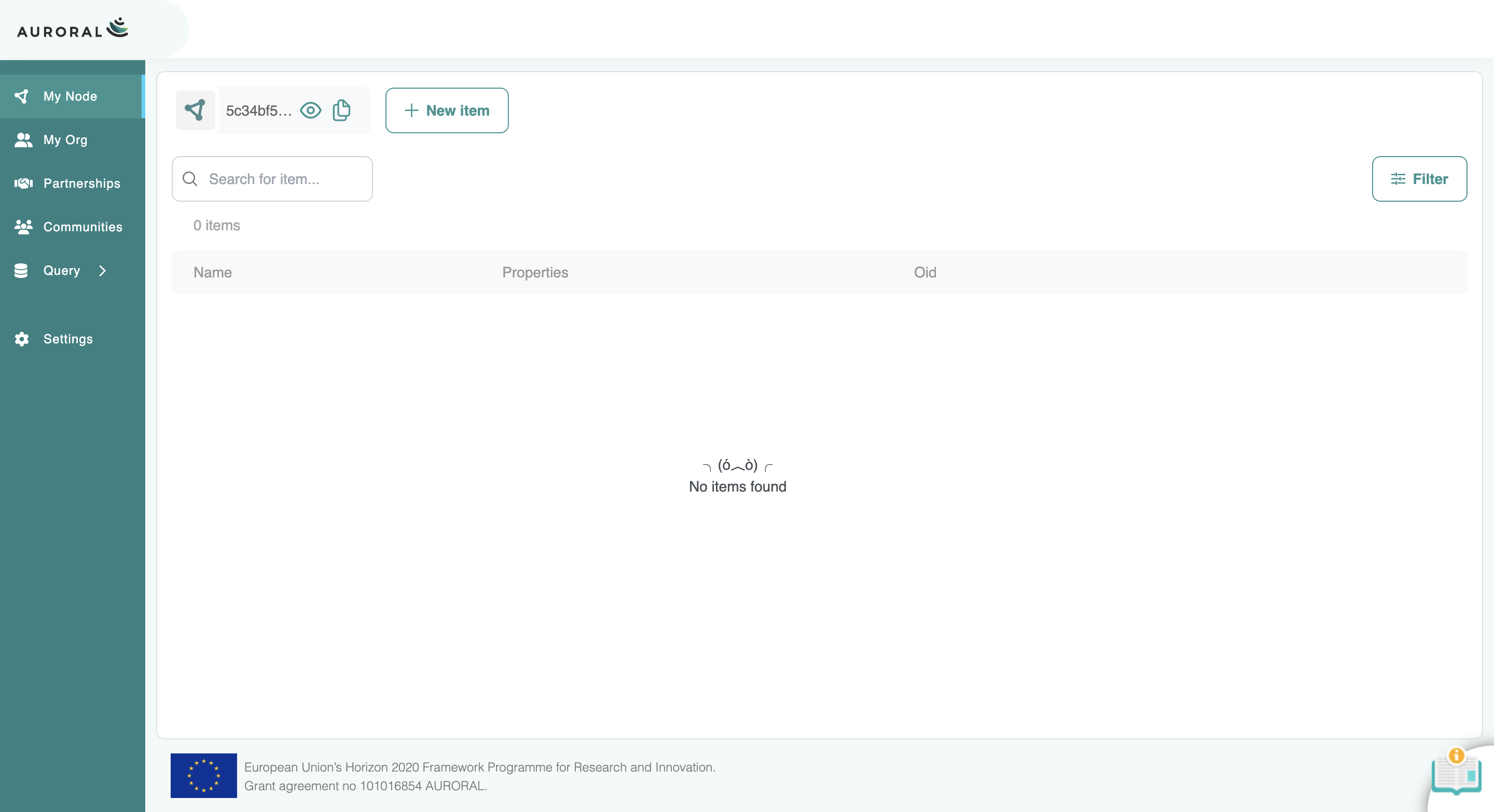
Register a new Item
To register a new Item with your Node please navigate to My Node and a press the + New item button. Here you will have option to use the TD Editor (recommanded) or upload Thing description either using a JSON-LD file or providing a JSON code.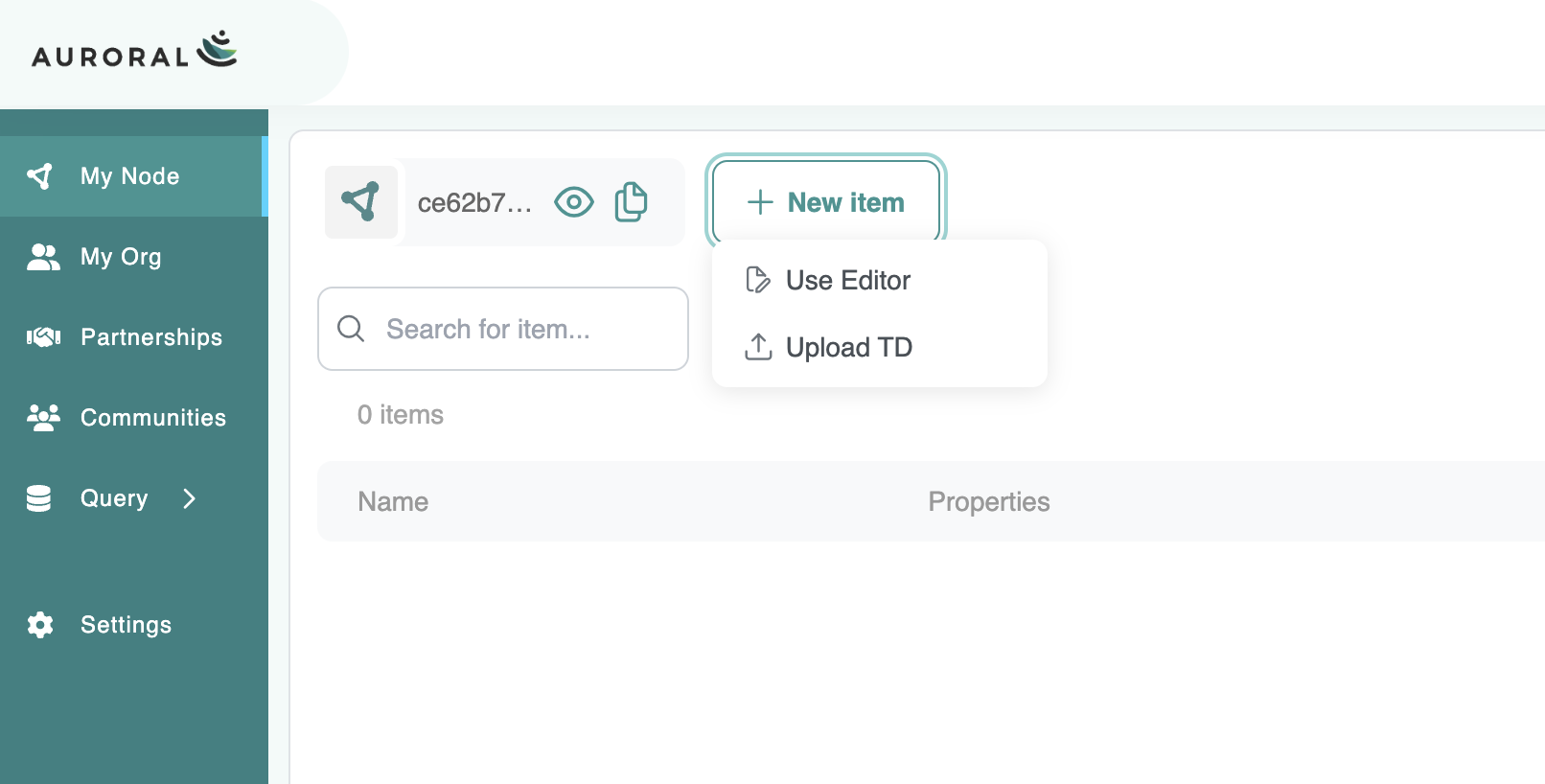
TD Editor
To learn more about how to create an item using the Editor please reffer to TD Editor section.
If you choose to create an item by either uploading a TD file or providing code, select the latter option. Here you will need to upload the file either by browsing the computer file system or you can drag the file with the mouse to the designated area.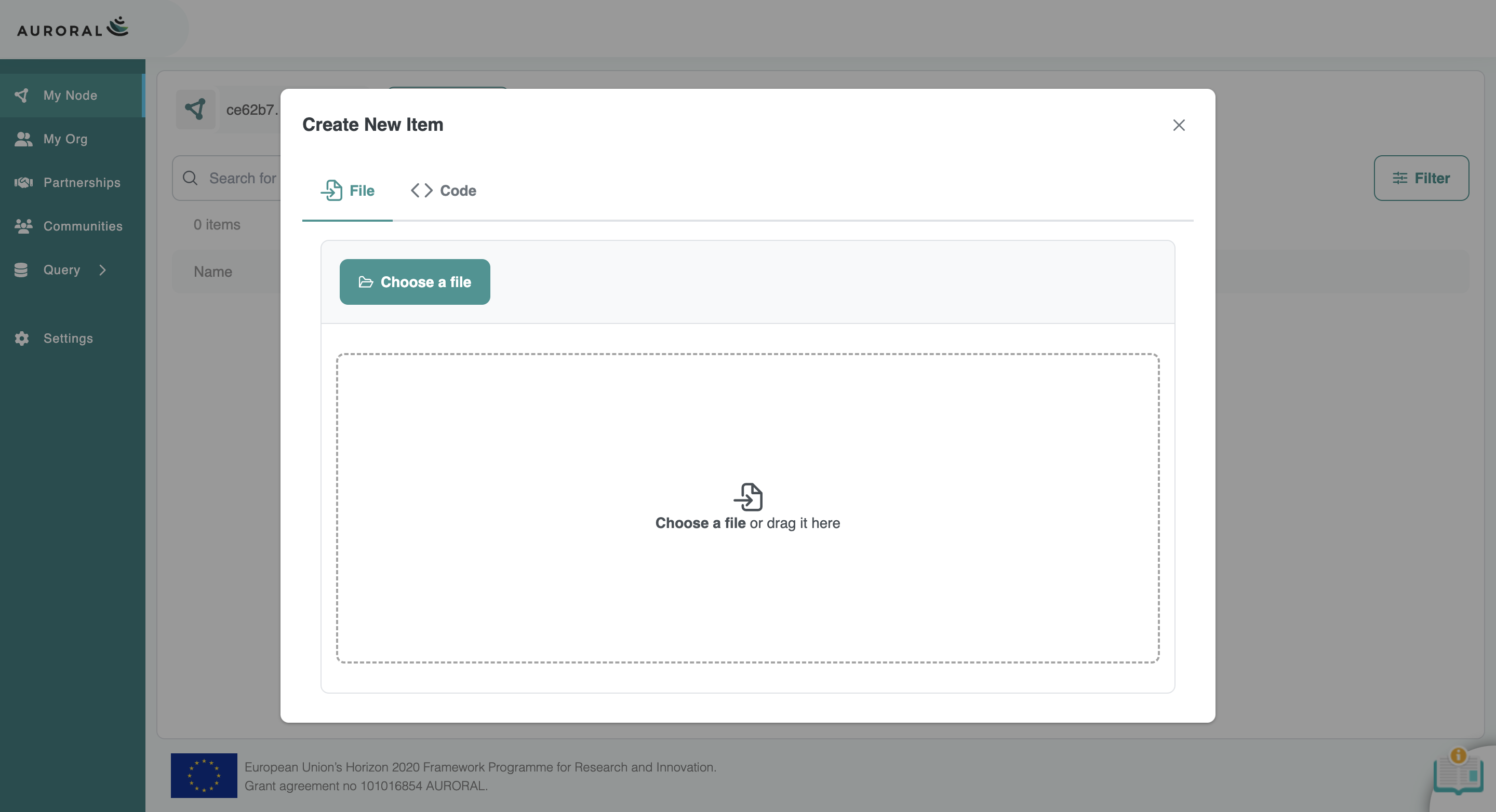
Thing description
Thing description is an JSON-LD description of the item that the AURORAL platform understands. For more information about the Thing description please reffer to Item - Thing description section.
After that you can just press the + Create item button and the your new item sould be registered on the Auroral Platform.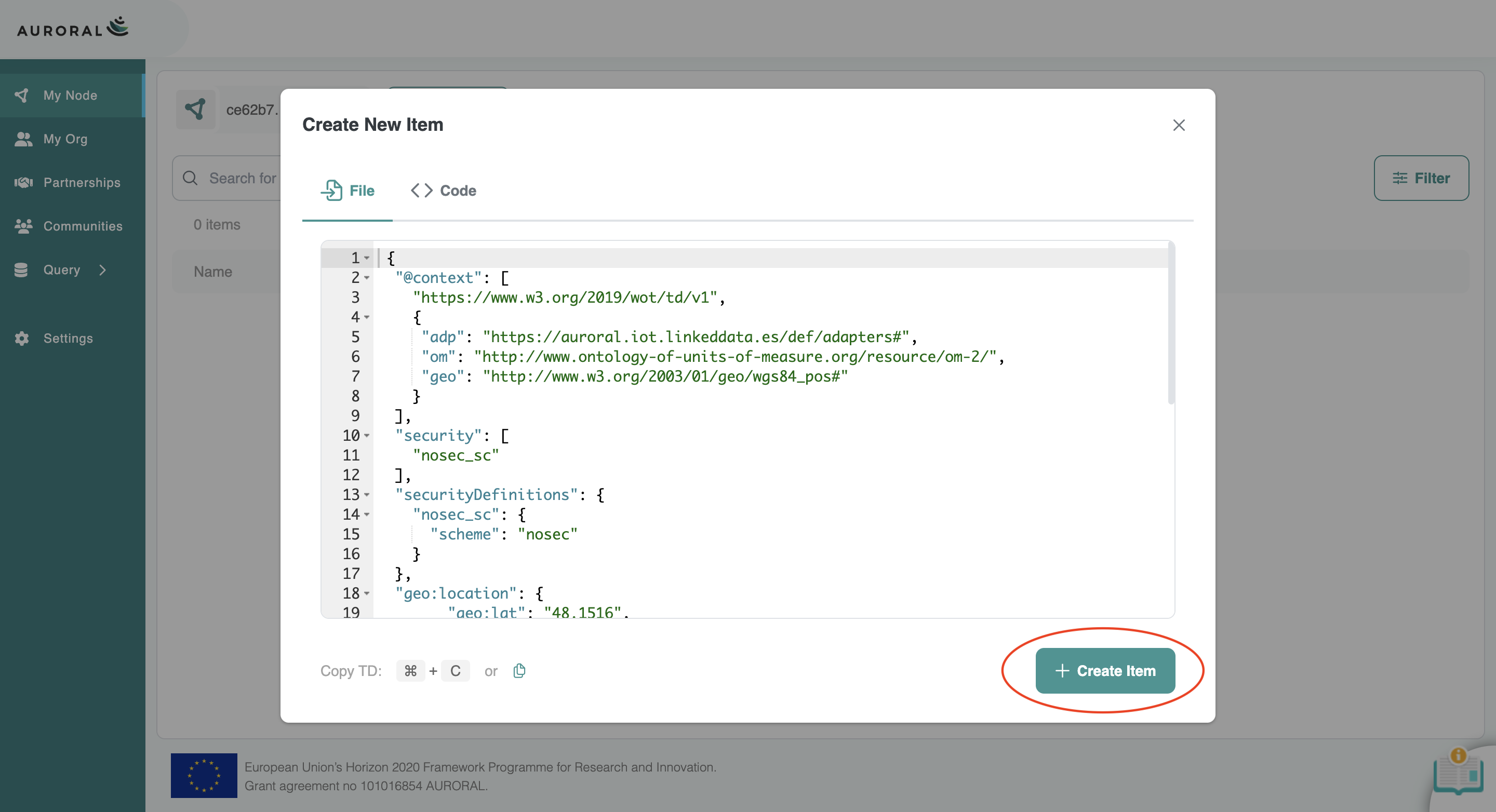
You can see it appear in the list of items registered in your Node.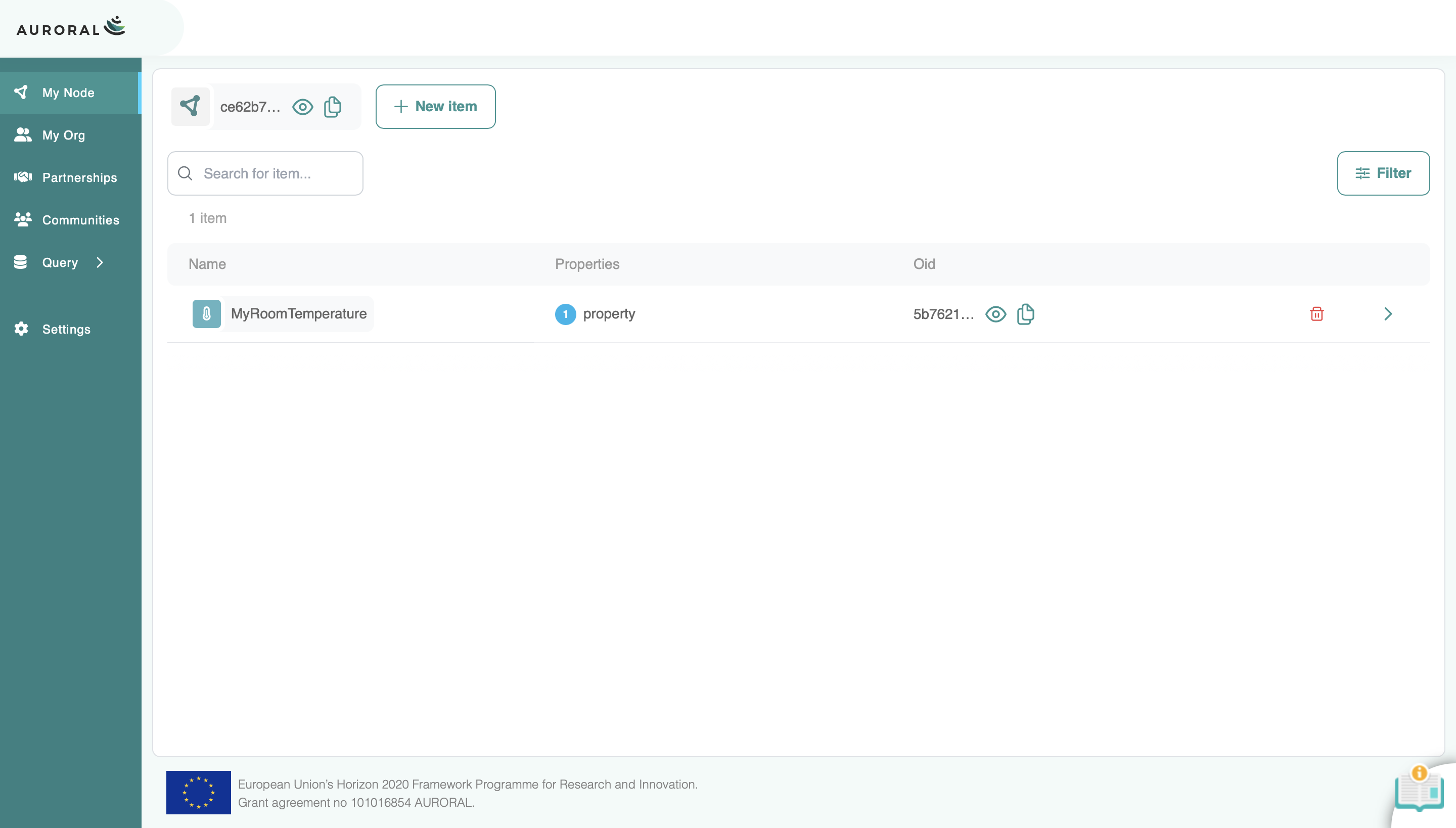
Retrieve a data from an Item
Prerequisites
- Contract with the organisation. Learn how?
- Item included in a contract. Learn how?
- Basic knowledge of Thing Description. Learn about Thing Description?
Retriving data from your node item or item is your organisation
The process is the same as retriving data from your partner. Only thing different is that you are not required to have a contract.
To retrieve data from your partner's item. You will need to navigate to 
Partnerships section, select your partner from the list and select the item you want to get data from.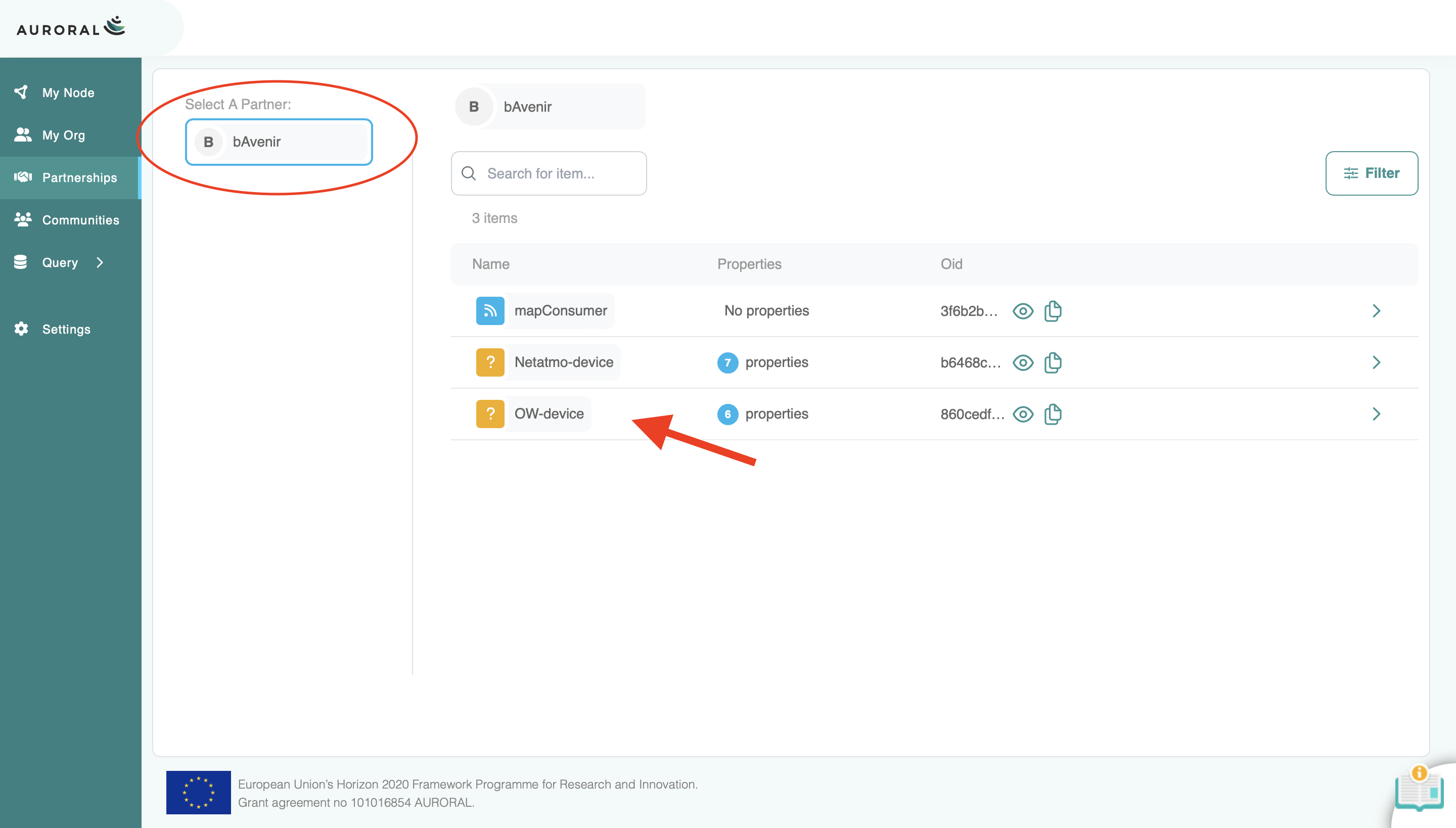
This will take you to the item details page where you can see a list of all the properties the item has. In this example we will select wind feels_like property of our OW Wheater station. To retrieve a data from a property press the Consume button next to that propery.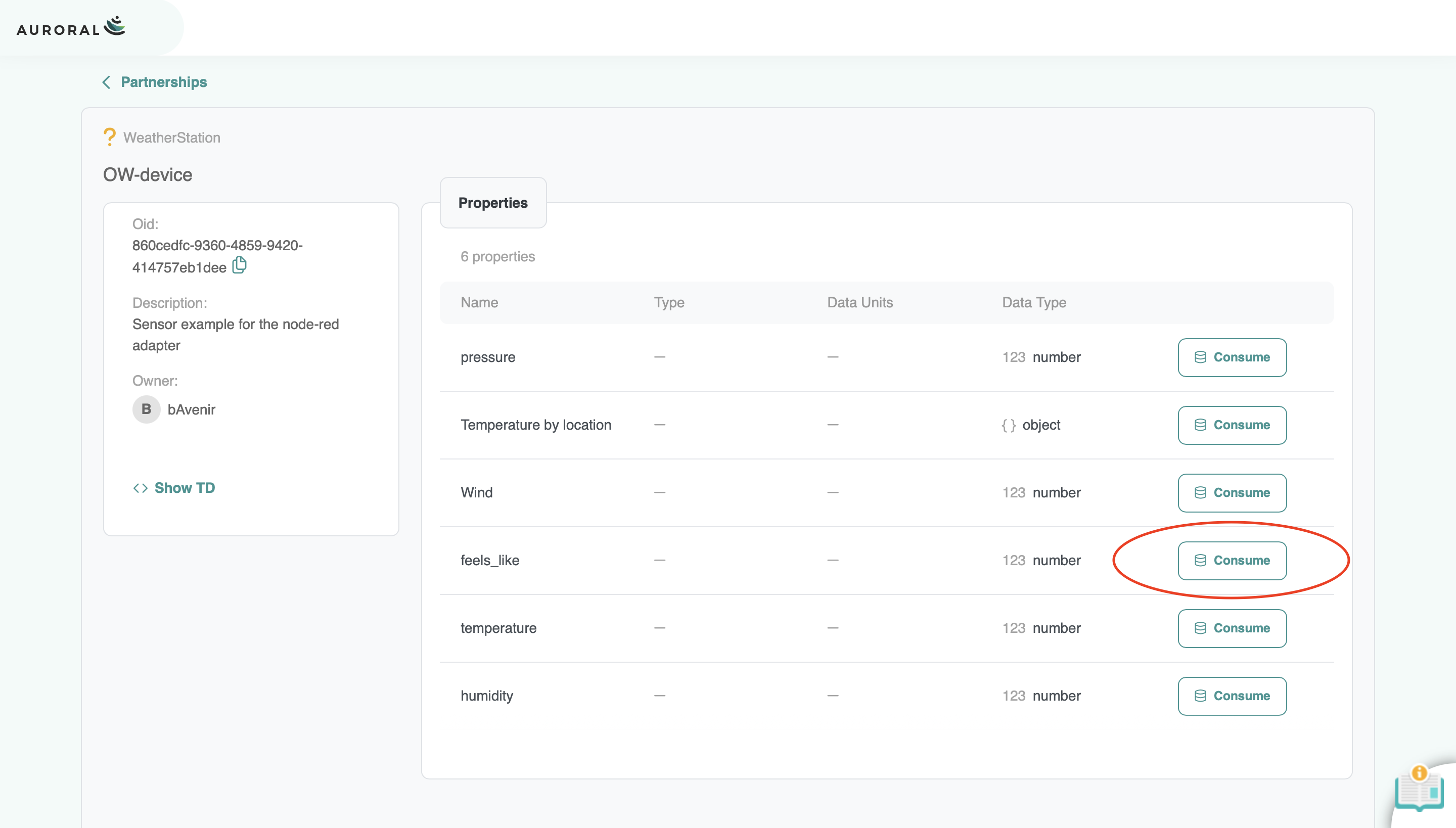
Here you can define your query to retrieve a data. Some of the items may require you to pass some query parameters or in case of PUT updates to also provide a body. To find out what type of parameters are required you will have to understat it's Thing Description. Our example property does not require any parameters so we can just press Get data button to display the result.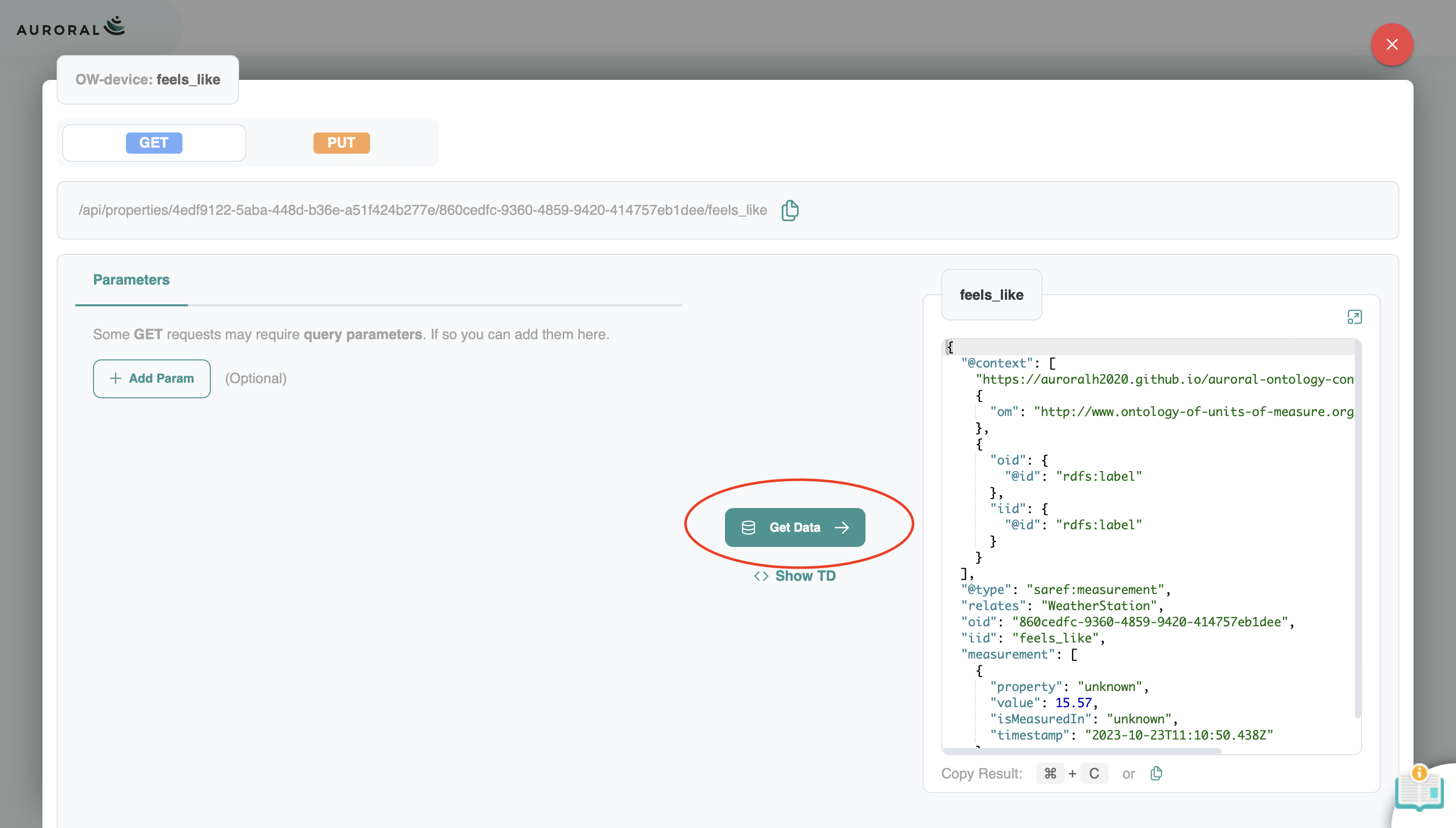
Thing description
Thing description is an JSON-LD description of the item that the AURORAL platform understands. For more information about the Thing description please reffer to Item - Thing description section.
Run a SPARQL query to retrieve a metadata
Prerequisites
- Contract with the organisation. Learn how?
- Item included in a contract. Learn how?
- Basic knowledge of SPARQL language. To learn more please reffer to official SPARQL documentation
Retriving metadata from your node item or item is your organisation
The process is the same as retriving metadata from your partner. Only thing different is that you are not required to have a contract.
To retrieve metadata from your partner's item. You will need to navigate to Query and then Partnerships section and press Select a partner drop-down button.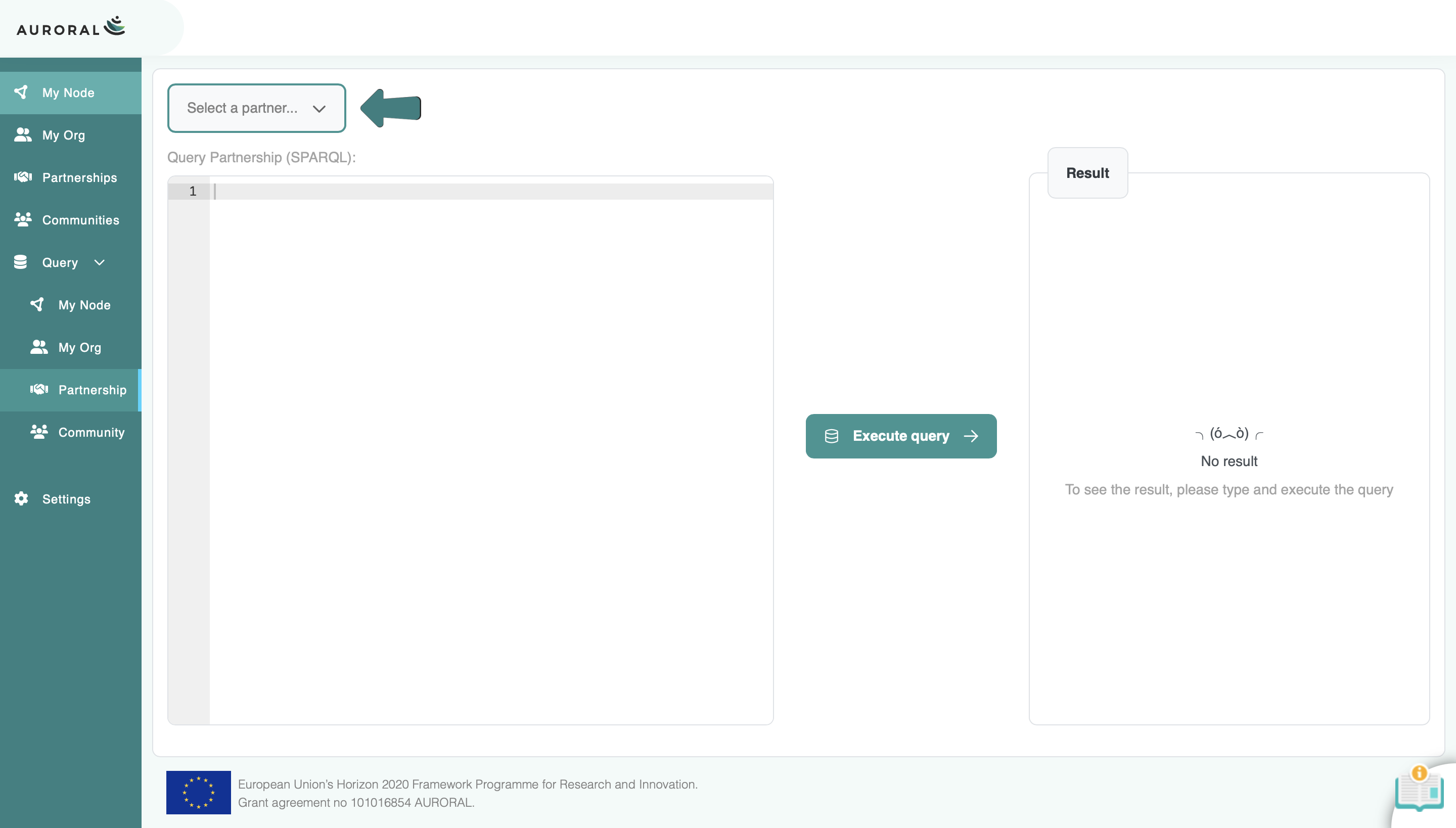
This will open a list with all your partners. In this example we only have one partner so we will select it.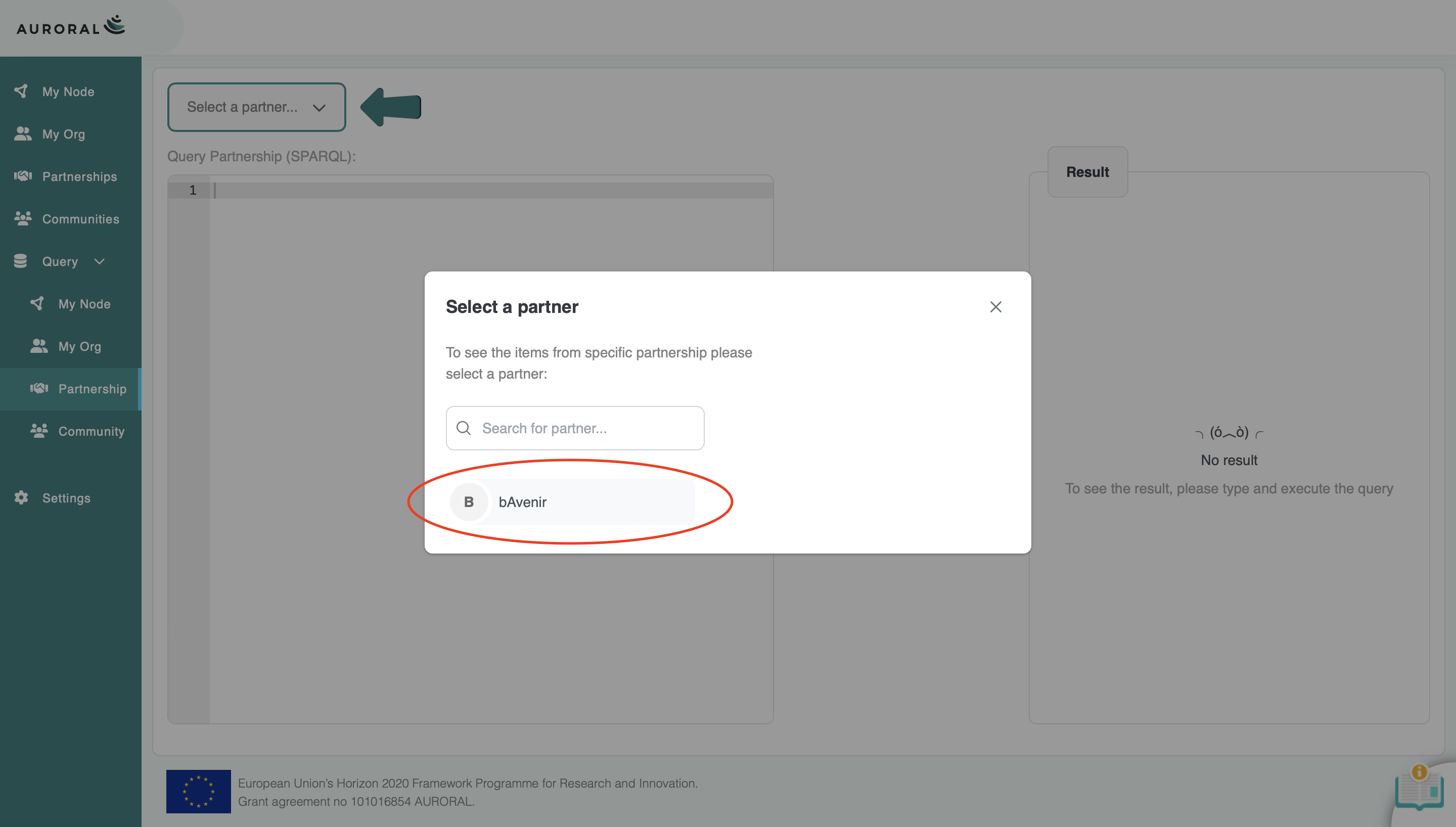
Now you will have to write your SPARQL query. We will run the following query:
PREFIX td: <https://www.w3.org/2019/wot/td#>
PREFIX rdf: <http://www.w3.org/1999/02/22-rdf-syntax-ns#>
     SELECT distinct ?oid ?name ?adapterId ?type ?desc WHERE {
        ?td td:title ?name .
        ?td td:adapterId ?adapterId .
        OPTIONAL { ?td td:description ?desc . }
        OPTIONAL { ?td rdf:type ?type . }
        FILTER(?type != <https://www.w3.org/2019/wot/td#Thing>)
        BIND ( replace(str(?td), 'https://oeg.fi.upm.es/wothive/', '', 'i') as ?oid)
    }
To execute it you just need to press the Execute query button to see the result.
Which will get basic information about all partner items.