Setup the organisation
Before you start using a platform, the first thing to do is sign up for an organization account. This means creating a profile, choosing an admininistrator for your organization, and providing information like your organization's name and contact details. This process helps set up your company on the platform and gives you access to all the cool features.
By registering an organization account, you are taking the first step towards utilizing the platform to its full potential and benefiting from the resources it provides.
Create the organisation
To get started, head to the Auroral Neighborhood Manager entrypoint. To set up a new organization, you'll need to visit an authorization page. Just click the Login button to continue.
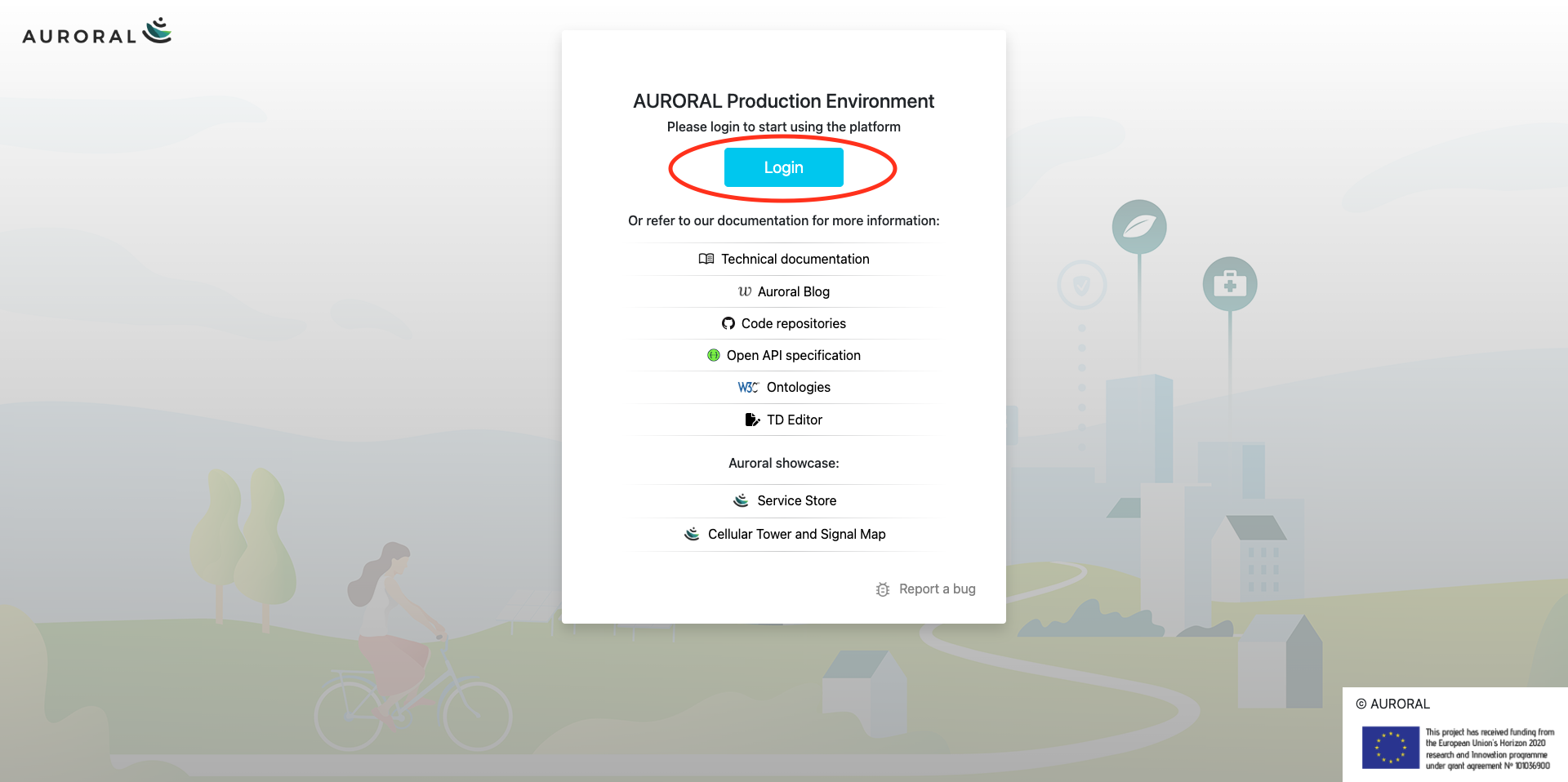
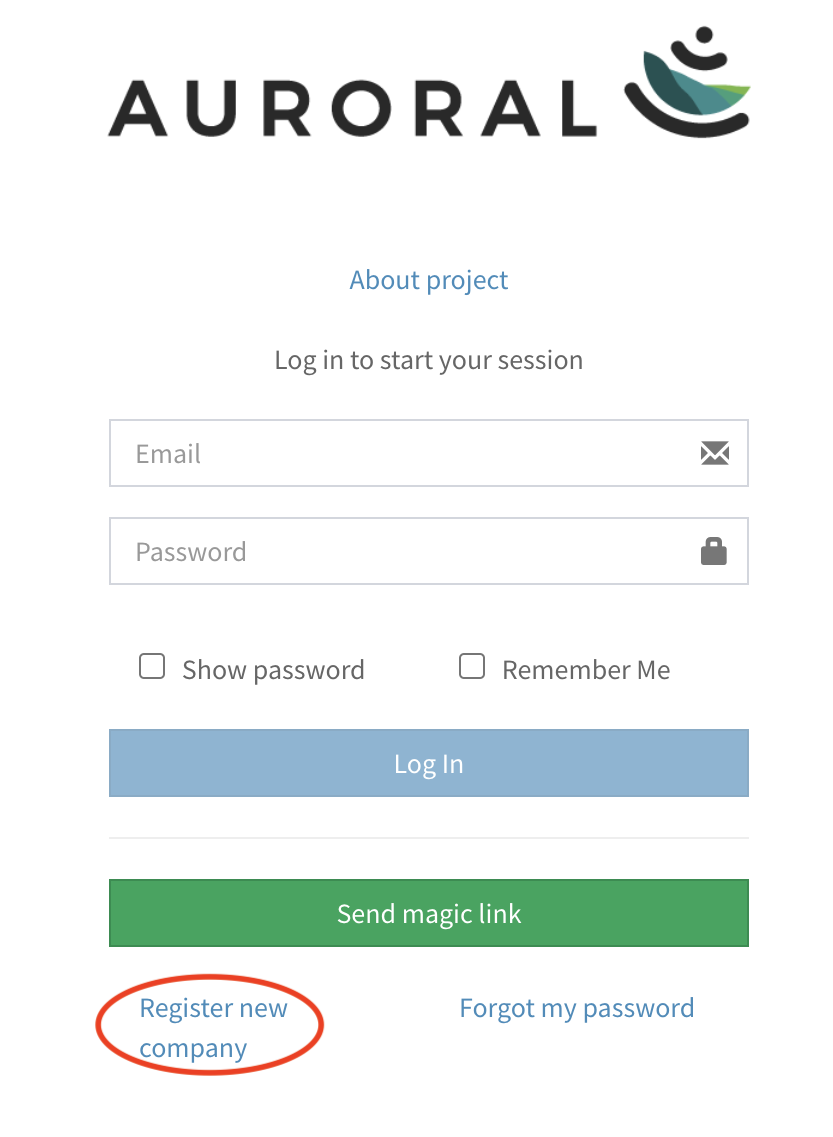
Here you can login using your Email and Password to access an existing organisation or create brand new organisation. To do so, please click on Register new company link located on the bottom of the form.
Review process takes time
All new companies have to be reviewed by our team. This is done manually so it may take some time to finnish. We want to kindly ask you to please be patient with us until review process is done. If you know some company that is using Auroral platform and is already authorized, you can skip the next steps and ask them to send you an invitation. For more information please refer to Organisation invitation section.
Next you will have to fill out basic information about your organisation and your company administrator. For the administrator you will have to provide an Email and create a Password which has to meet a security criteria.
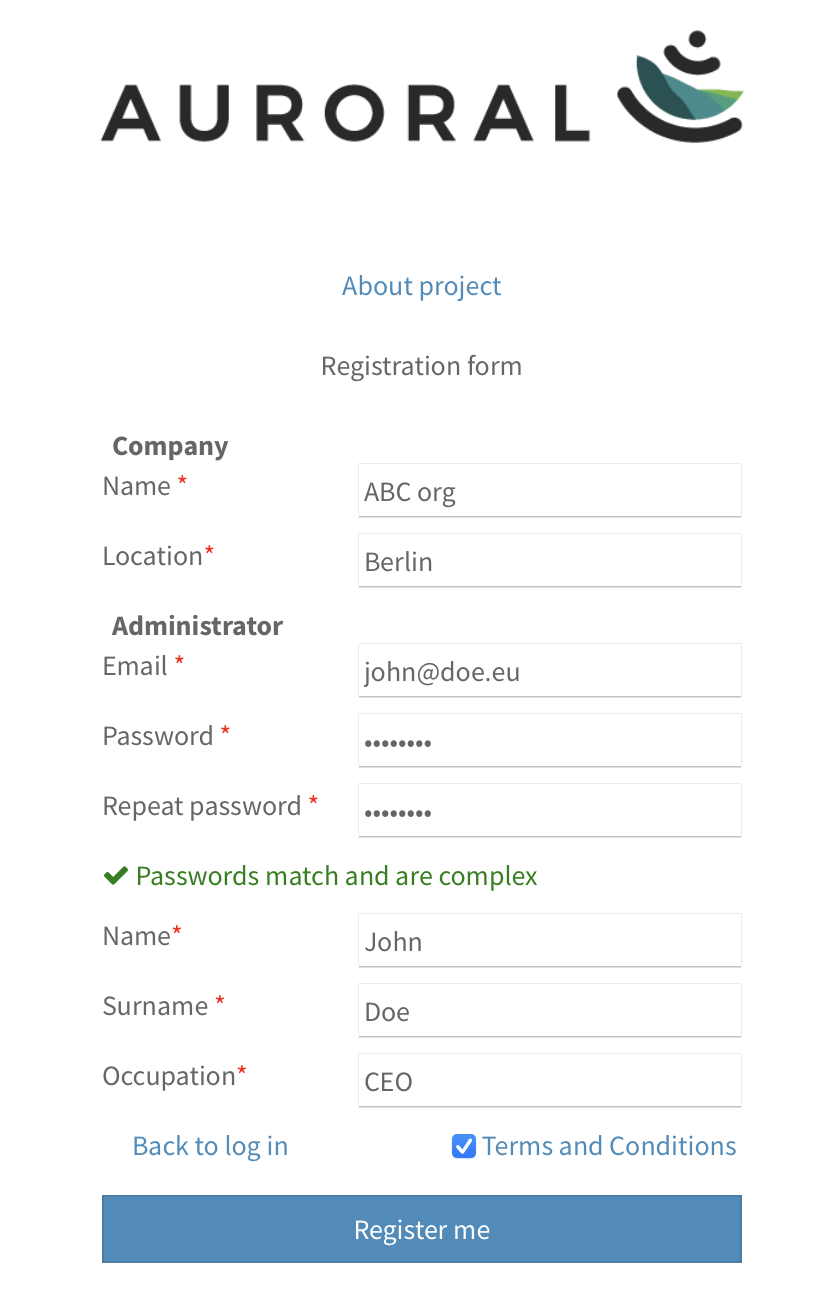
Administrator
Every organisation has to have at least one administrator account to manage users, roles and settings. When you create a new company, this accout is created for you automaticlly. For more information about the user roles please refer to Users section.
How to use existing Auroral User as the administrator?
If you want to use existing Auroral User as administrator for the new company, this user will have to recieve an invitation from the existing organisation. For more information please refer to Organisation invitation section.
After you submit registration request, your company will be manually reviewed by our team. During this process you may be contacted by our employees requesting further information about your company. After the review process has been seccessfull you will recieve a confirmation email with a link. To finnish autohorization please click on link in the email.
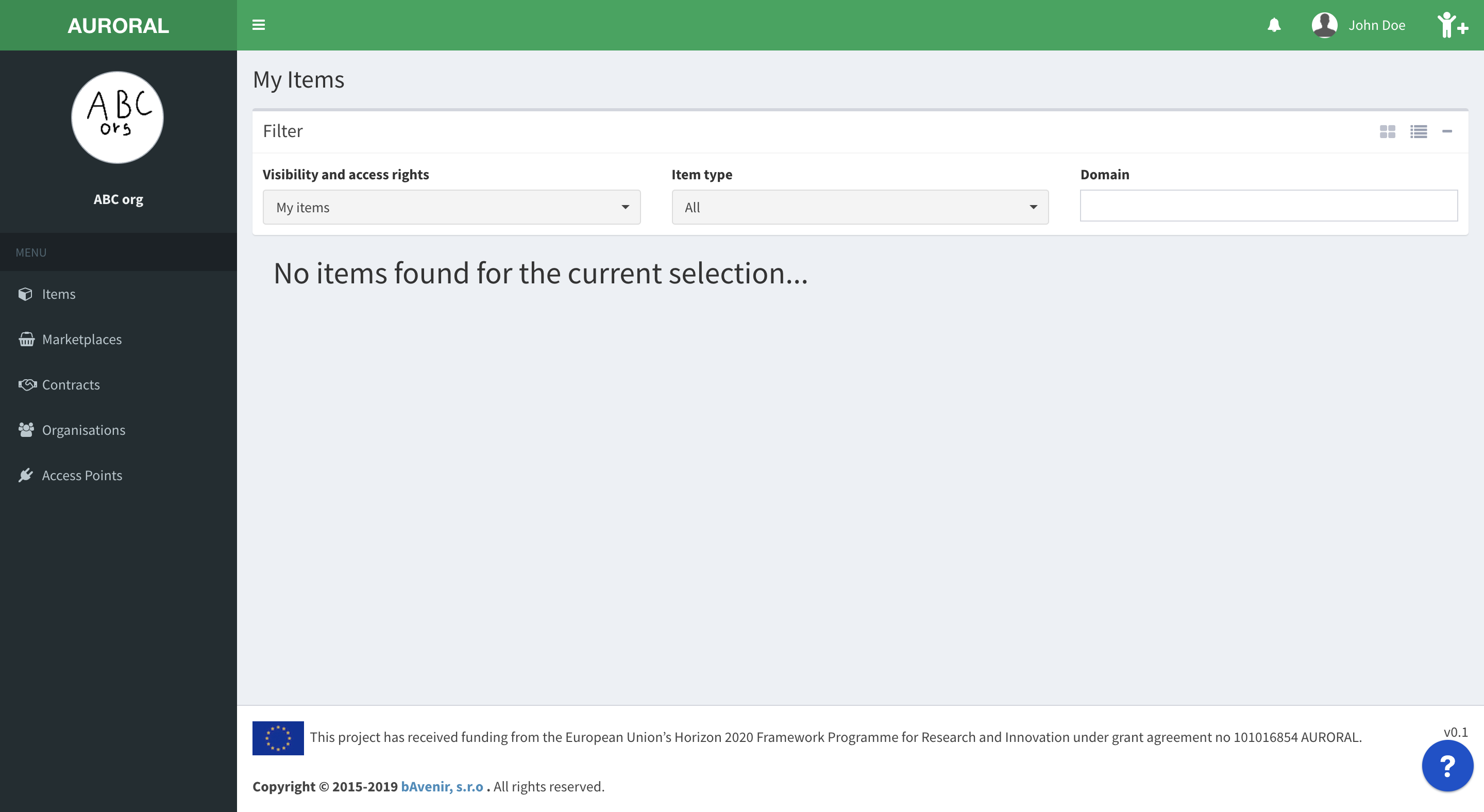
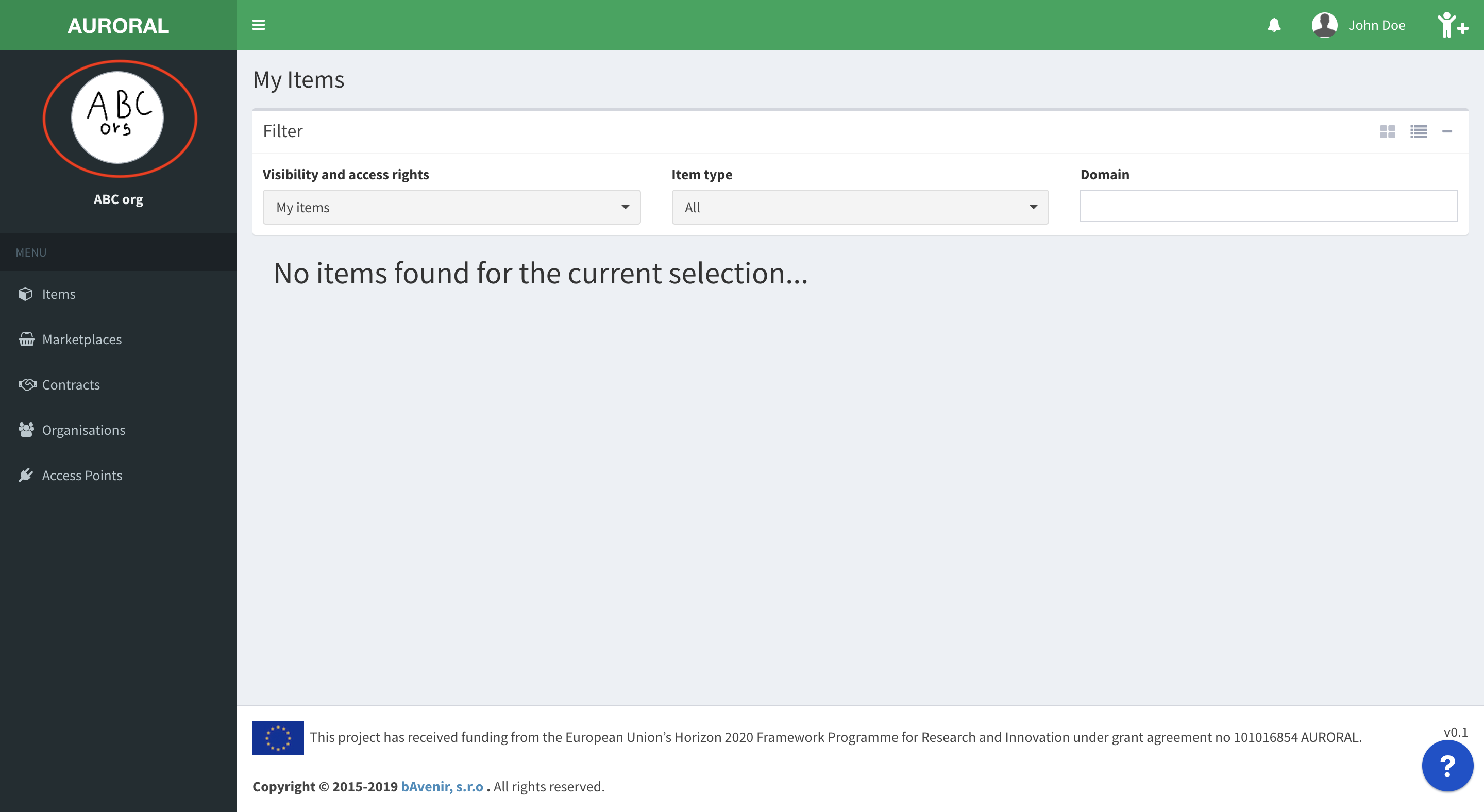
After your organisation account has been setup you can access it by loging in here using administrator account credentials you have provided in previous step. When you successfully log in you should see following screen:
Configure the organisation
There are several things that can be configured for your organisation. Some are just cosmetic changes like adding company logo, changing location and so on. And some are more advanced. For example changing User roles.
All of this settings can be changed by clicking on your company avatar in top left corner of website:
When a new organisation is registered to the Auroral platform, default roles given to a first user are: administrator, infrastructure operator, system integrator. In order to procceed with setting up a connection to the Platform all this roles need to be present. To confirm this, please open Role managment section. You should see the following roles assigned to your user:
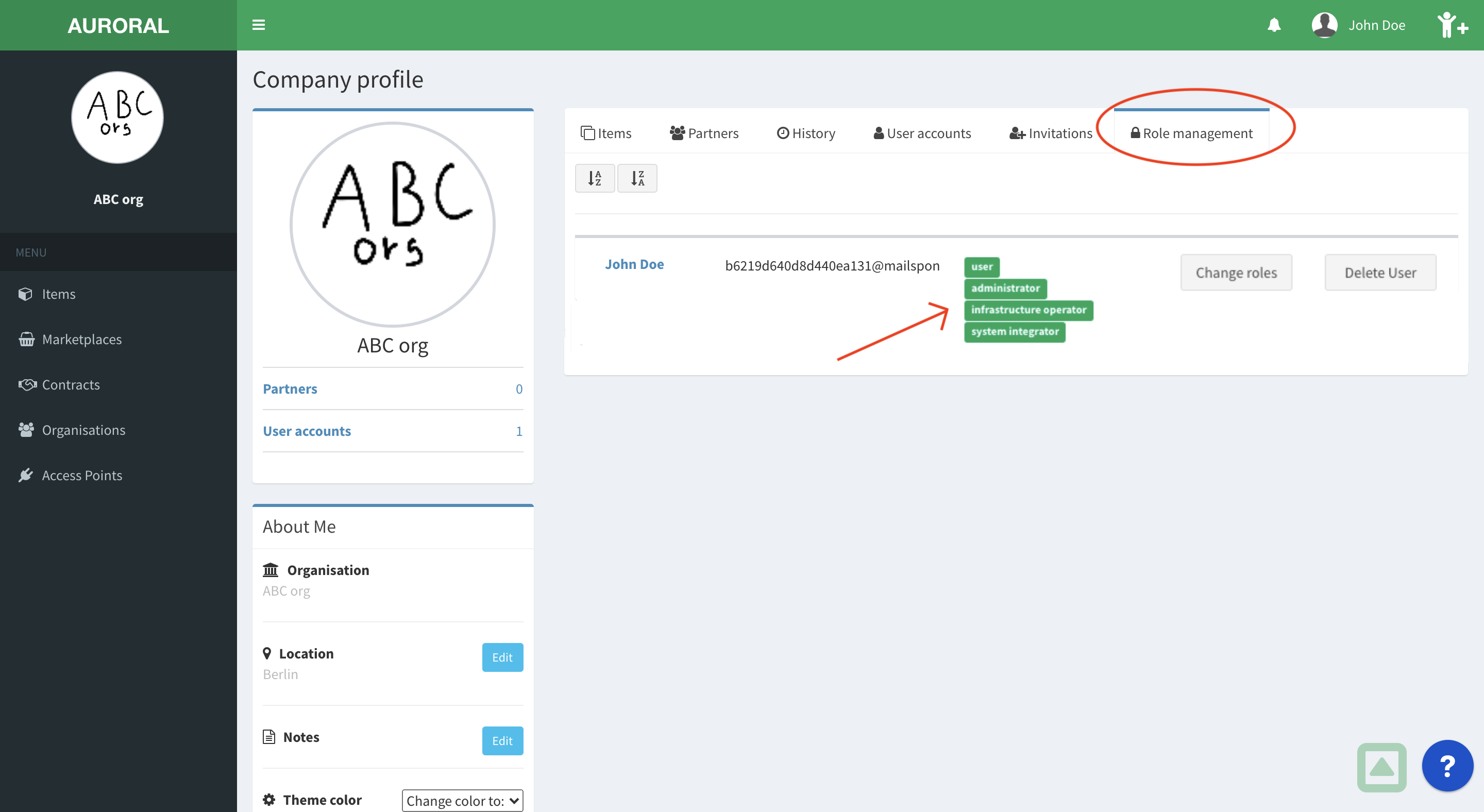
User roles
All interactions with the platform such as: manage users, add access points, remove sevices and so on, are determined by the roles which have been assigned to a user by the administrator. For more information about the user roles please refer to Users section
When all necessary roles are present, the next step would be to install Auroral Node in your infrastructure. Node acts as a gateway to Auroral ecosystem and is crucial for exchanging data and metadata between other organisations in the Platform or even in your own organisation.
Procceed to install Auroral Node