Relationships
There are three different types of governance relationships that organisations can manage: communities, partnerships, and contracts. Their goal is to solve different use-cases Auroral platform has to offer.
Tip: Nodes and items
To understand Auroral relationships it is important to understand the Nodes and Items which are important part of this concept. To learn more about each please refer to Auroral Nodes and Items section.
Communities
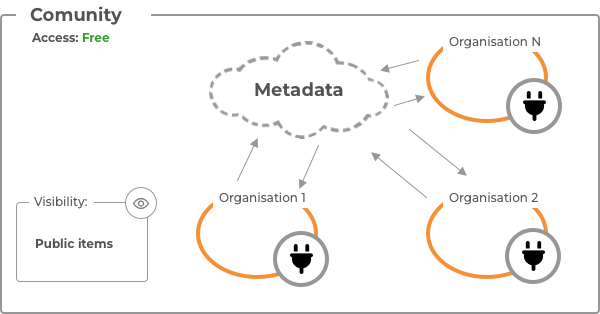
Communities are groups of organisations that come together to share resources, usualy on a common topic or theme. They are self-organizing and can be created and managed by any organisation in the platform.
Members connected to the commmunity bring their organisation nodes () to this relationship to allow other members to access items connected to that node. In order for other members to see the item the visibility level of that item has to be set to public (). The type of resource shared in this reationship is the metadata of an item:
Tip: Control the resource sharing
To control which resources are being shared between other members of community you have to set appropriate visibility level for the item. Only items with public visibility are accessible by other mambers of the community. Items with any other visibility level will be ignored.
Items with
partnerorprivatevisibility level will not be visible to other members of thecommunity
Partnerships
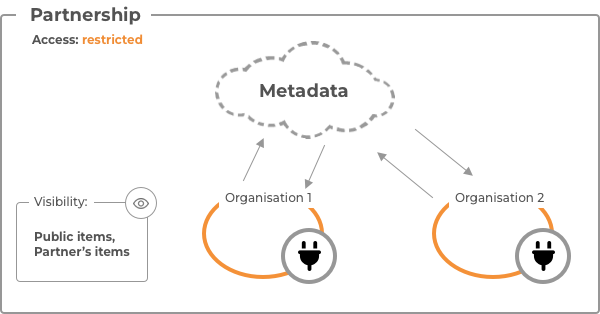
Partnerships are more formal arrangements between two organizations that are established to achieve a specific set of goals. Access to this type of realationship is restricted and requires agreement between both parties. To establish a partnership with other company you will have to send a partnership request which then needs to by accepted by the other party.
Both parties bring their organisation nodes () to this relationship to allow other party to access items connected to that node. In order for other party to see the item the visibility level of that item has to be set to either partner or public (). The type of resource shared in this reationship is the metadata of an item:
Tip: Control the resource sharing
To control which resources are being shared with your partner you have to set appropriate visibility level for the item. Only items with partners and public visibility are accessible by the partner. Items with private visibility level will be ignored.
Items with
privatevisibility level will not be visible to yourpatner
Contracts
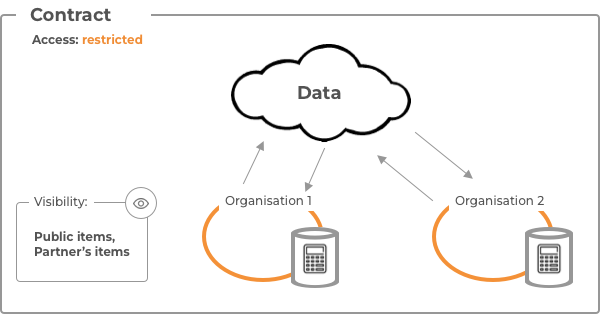
This relationship is needed when it comes to sharing data between two organizations. It is build on top of partnership between organisations. Access to this type of realationship is restricted and requires agreement between both parties. To establish a contract with other company you will have to have a partnership with the company and then you can send a contract request. Request then needs to by accepted by the other party.
Both parties bring their items () to this relationship to allow other party to access items data. In order for other party to see the item the visibility level of that item has to be set to either partner or public (). In this type of relationship actual data are being shared between the parties:
Tip: Control the data sharing
To control which data are being shared with your partner you have to add or remove specific item from the contract.
Items with
privatevisibility level will not be visible to yourpatner
How to?
Here you will find an tutorials on how to manage organisation relationships. First step is to login to your organisation account in Neighbourhood Manager here.
Make sure to avoid any data leaks
If you are updating your data sharing rules, please be aware of any other relationships you may have with companies involved. Always check your data sharing rules to avoid any data leaks.
Create a community
Infrastructure operator role required
Only users with infrastructure operator role are allowed to manage communities.
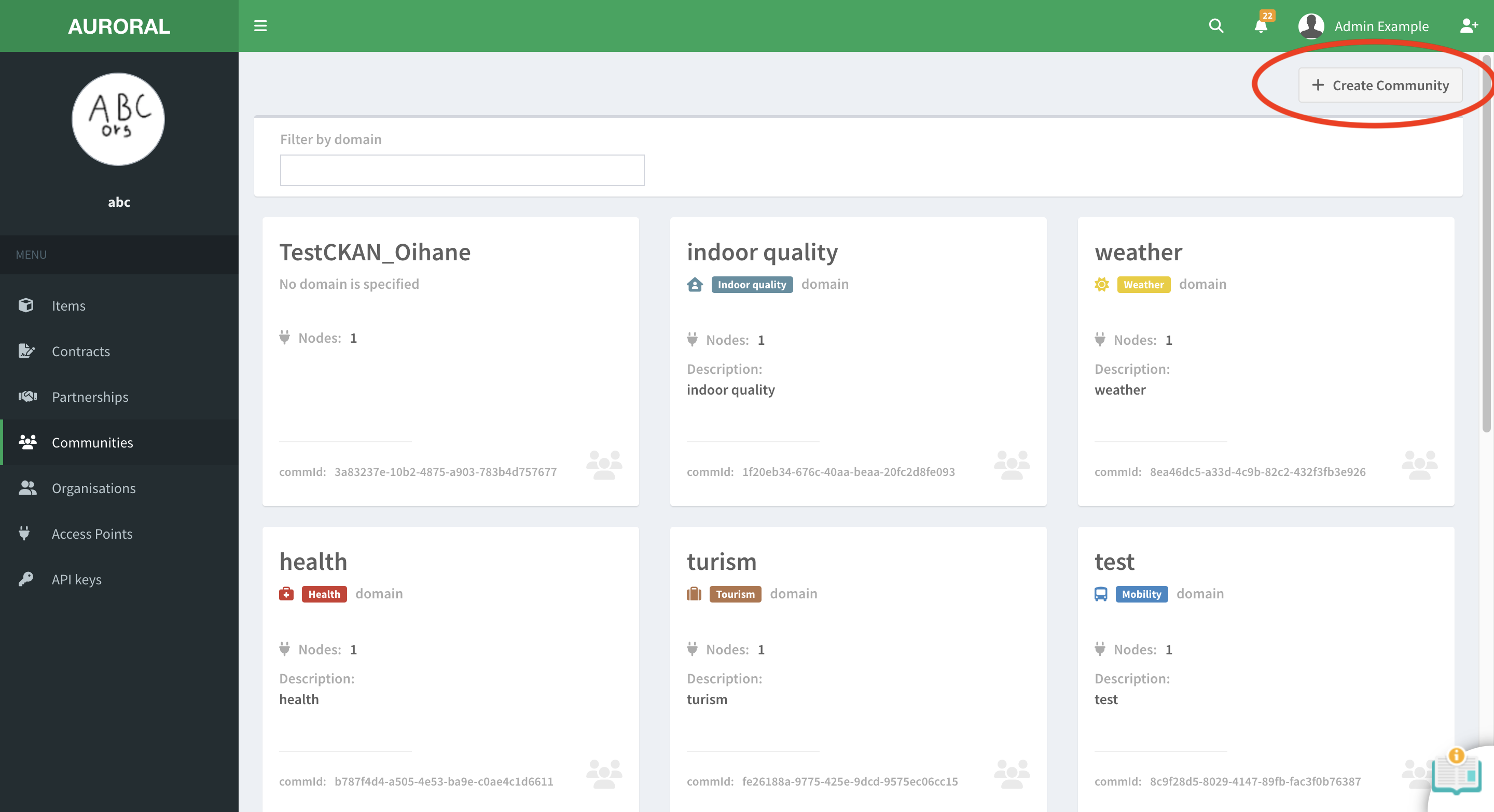
To create new community you will have to open the communities section and then click on the Create new community button:
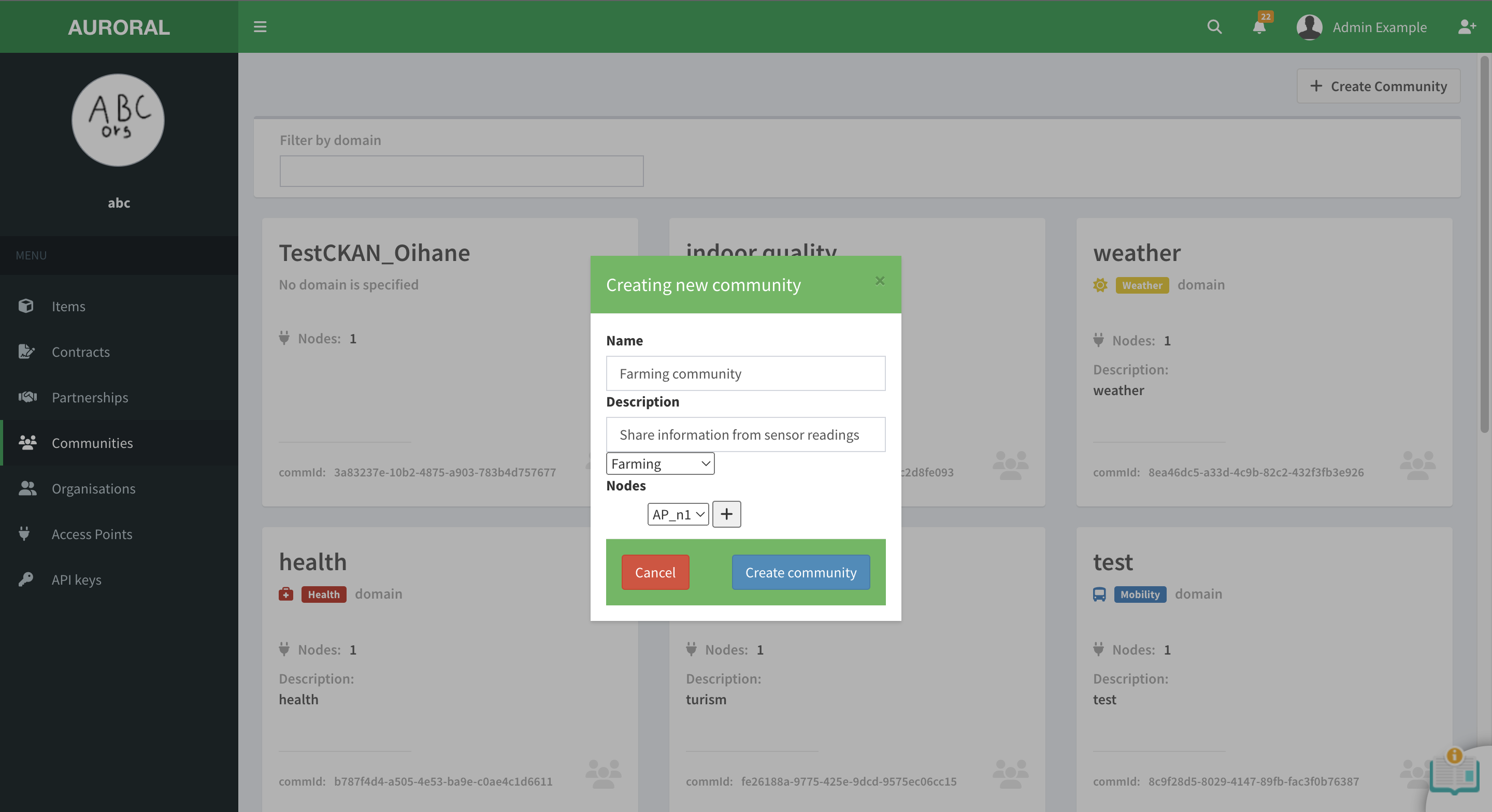
After that dialog will appear where you will have to provide information about the community and add nodes to that community by selecting node from a list and pressing button. After that just press the Create community button:
Join or leave a community
Infrastructure operator role required
Only users with infrastructure operator role are allowed to manage communities.
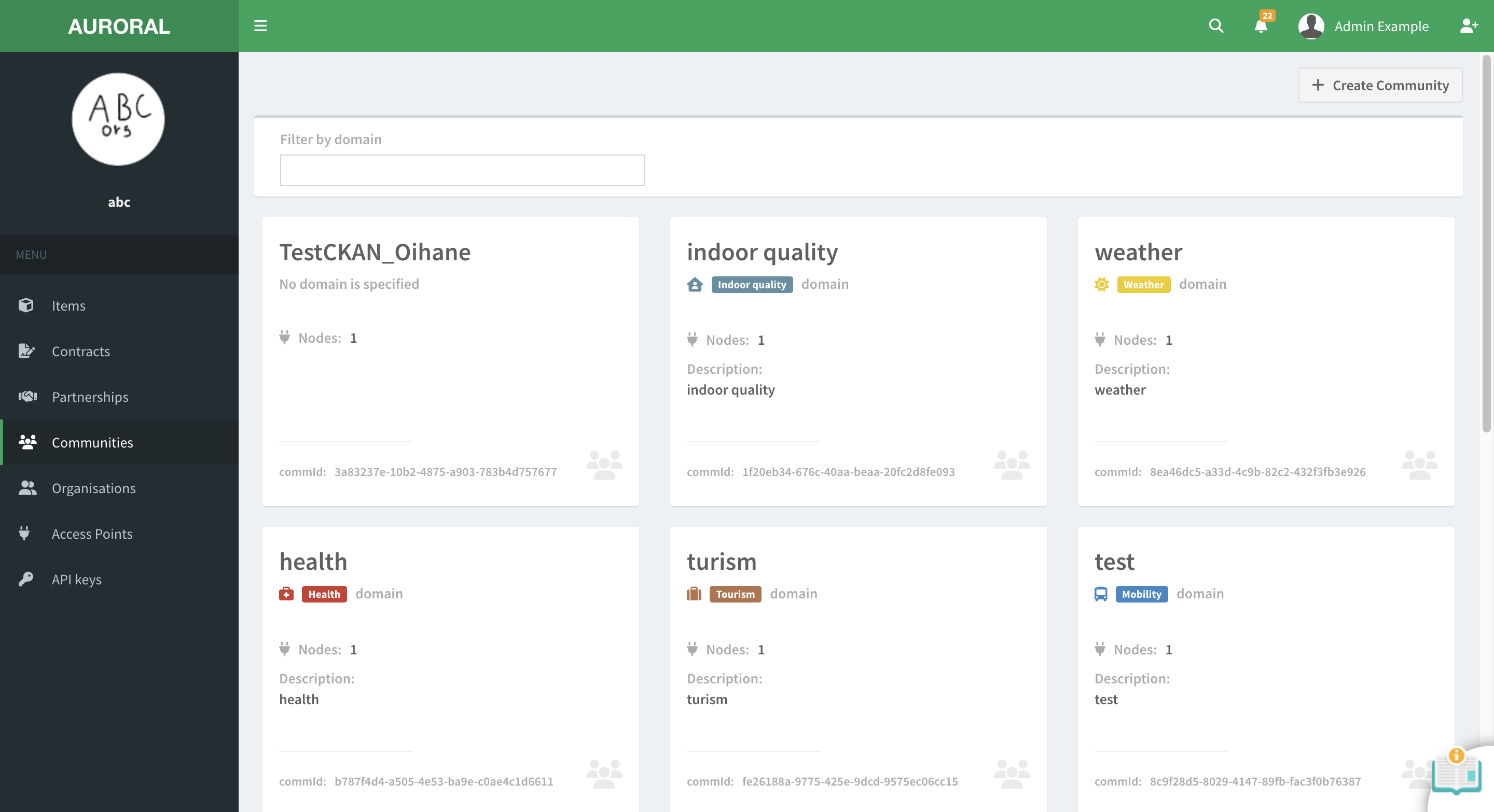
To join existing community you will have to open the communities section, find the one you want to join in a list and open the it's profile page by clicking on it:
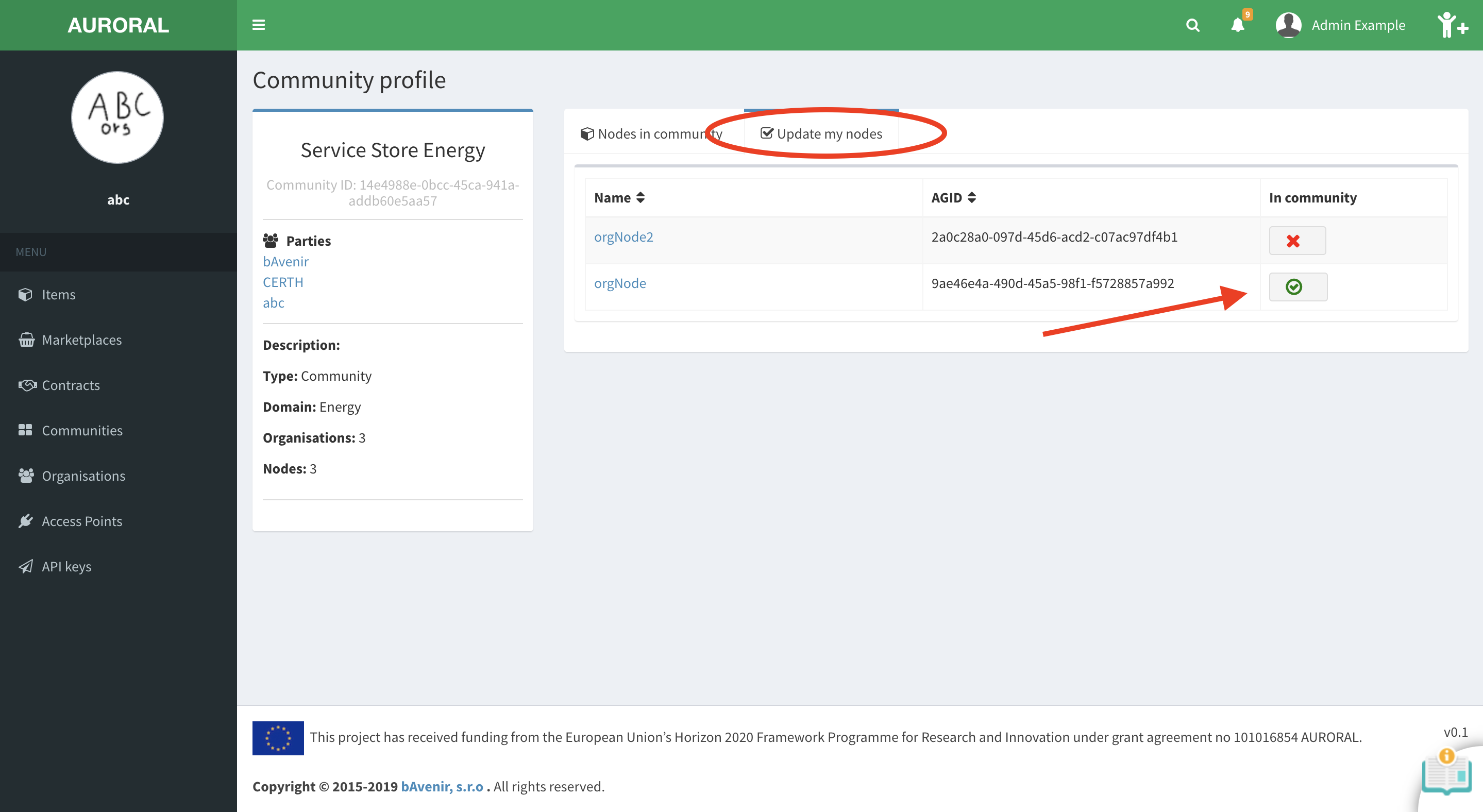
Here you will have to open the Update my nodes tab and by adding the organisation node to the relationship you are joining the community.Removing the last node from relationship will resault in leaving the community. To add or remove node from the community, simply press the add or remove button:
Joining the community is free and does not require any approval.
Create a partnership
Infrastructure operator role required
Only users with infrastructure operator role are allowed to create partnerships.
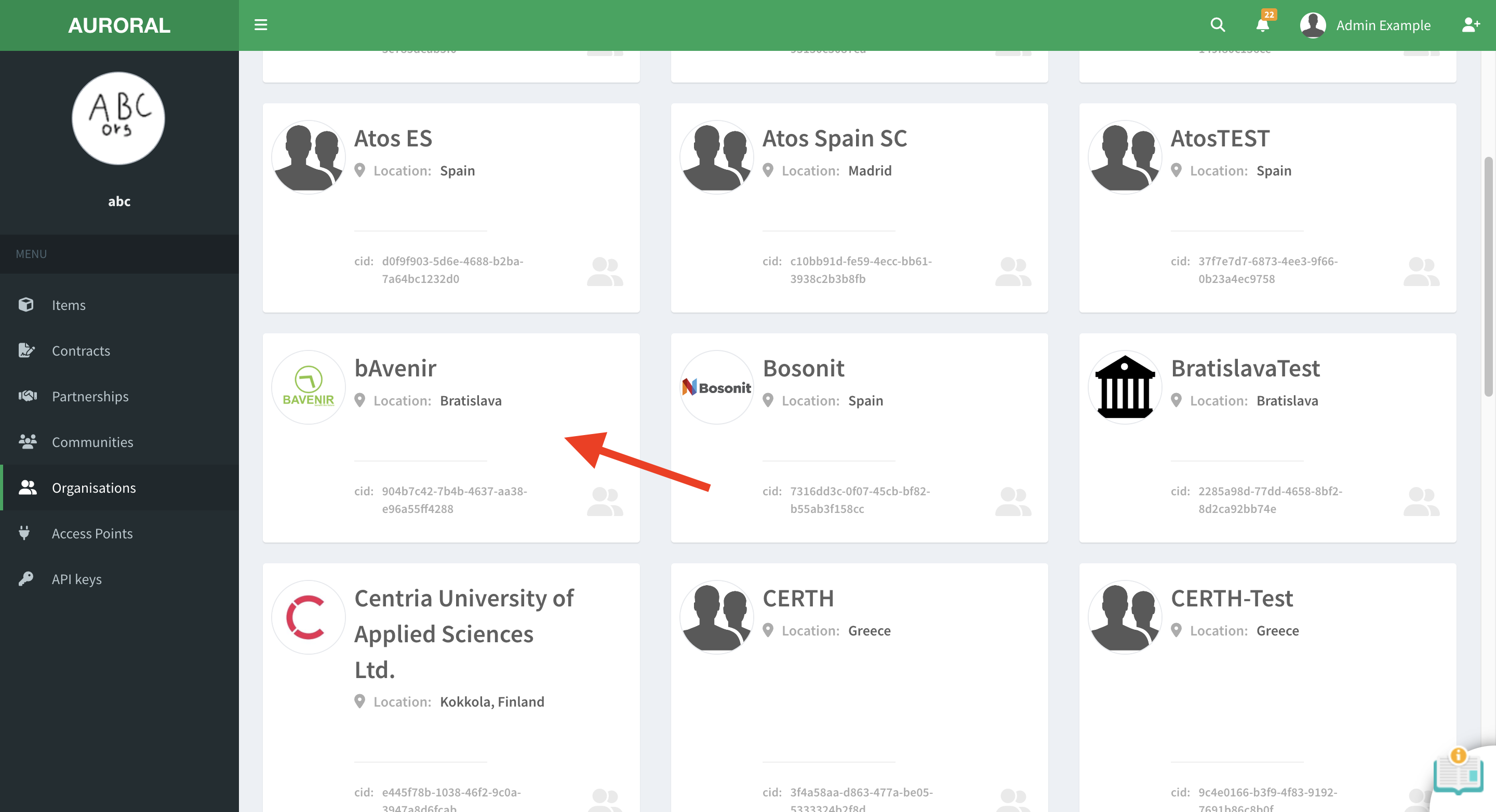
To create a partnership with the organisation you will have to open the organisations section, look for the partner and select it:
This will take you to the organisation profile page. Here, inside the detail card on the left, you can find the button to send partnership request:
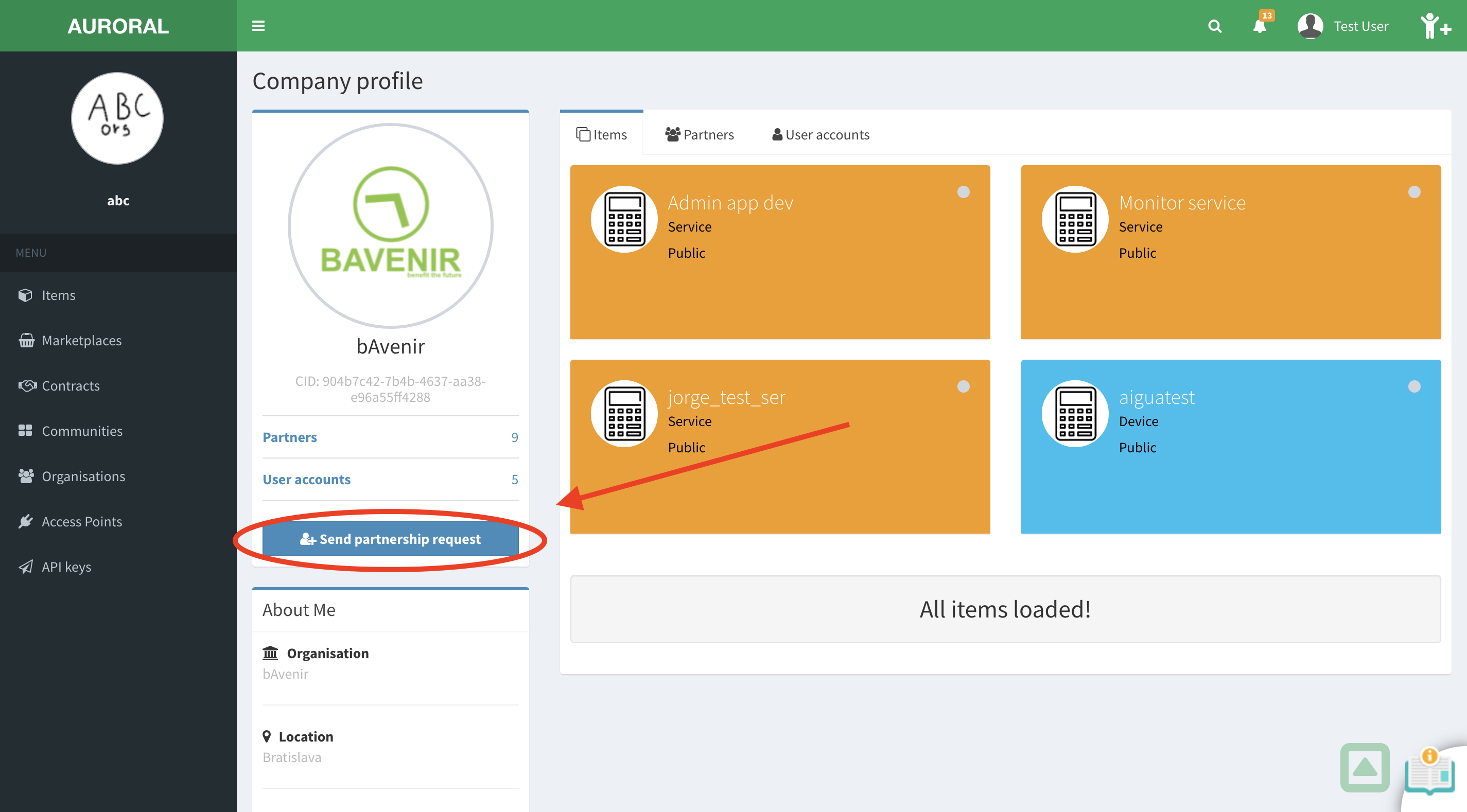
In order for partnership between your organisations to be established, the other party will have to accept the partnership request.
Manage nodes in a partnership
Infrastructure operator role required
Only users with infrastructure operator role are allowed to create contracts.
Prerequisites
- Partnership with the company. Lean how?
To add or remove nodes from partnerships you have to open the communities section, find the contract you want to edit and select it:
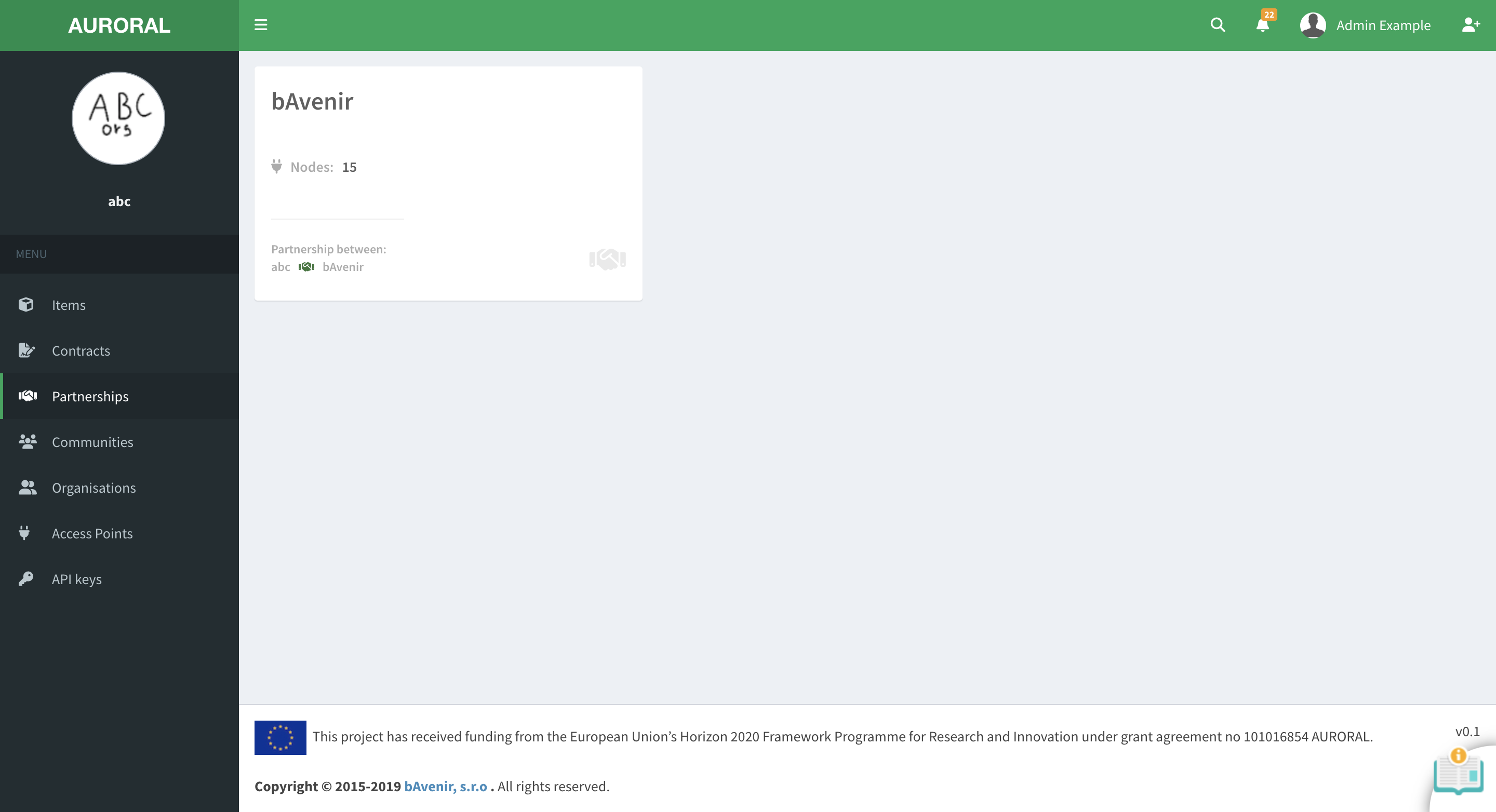
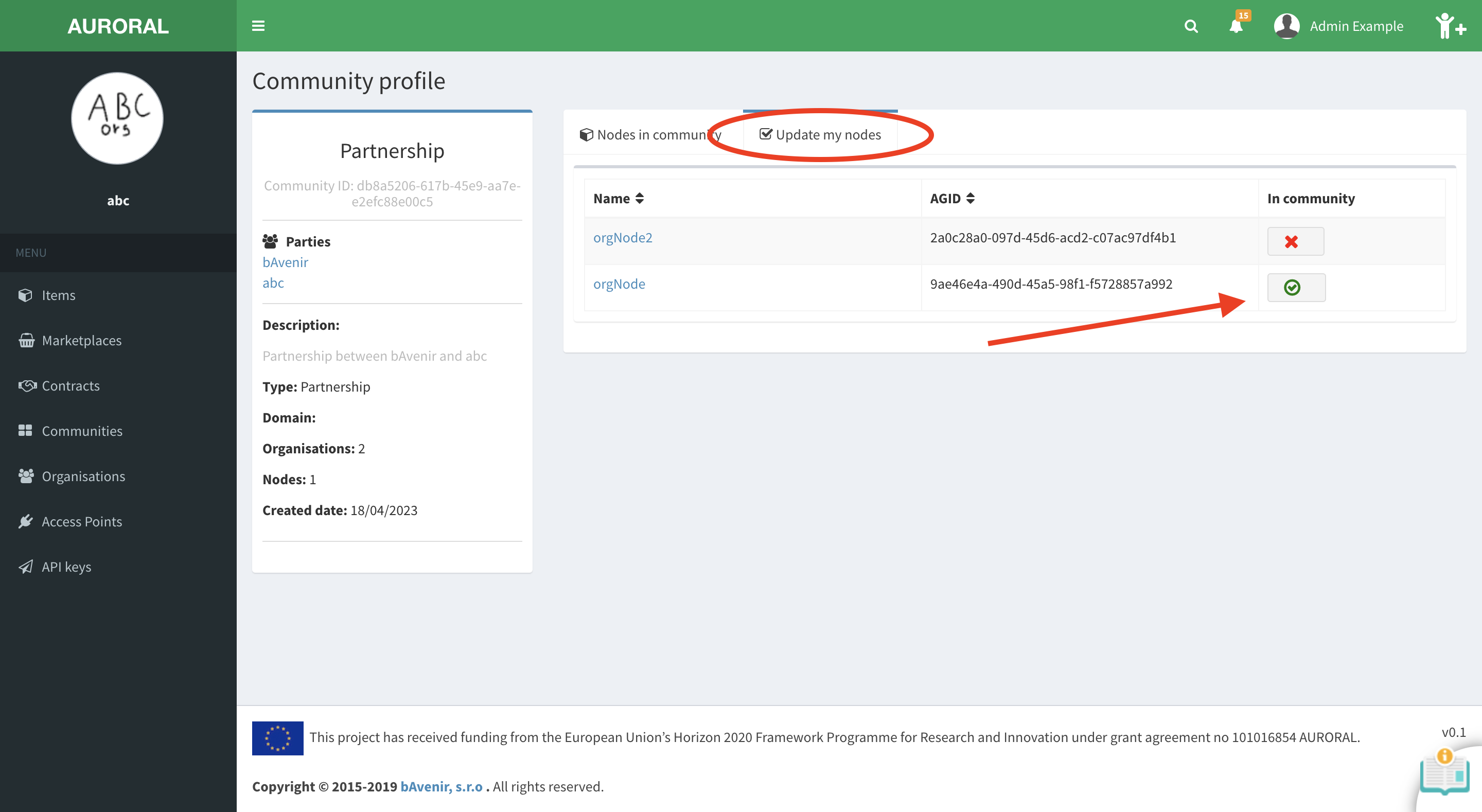
This will take you to the partnership detail page. Here you will have to open the Update my nodes. To add or remove node from the partnership, simply press the add or remove button:
Create a contract
Infrastructure operator role required
Only users with infrastructure operator role are allowed to create contracts.
Prerequisites
- Partnership with the company. Lean how?
To create a contract with your partner's organisation you will have to open the organisations section, look for the partner and select it:
This will take you to your partner's profile page. Here, inside the detail card on the left, you can find the button to send contract request:
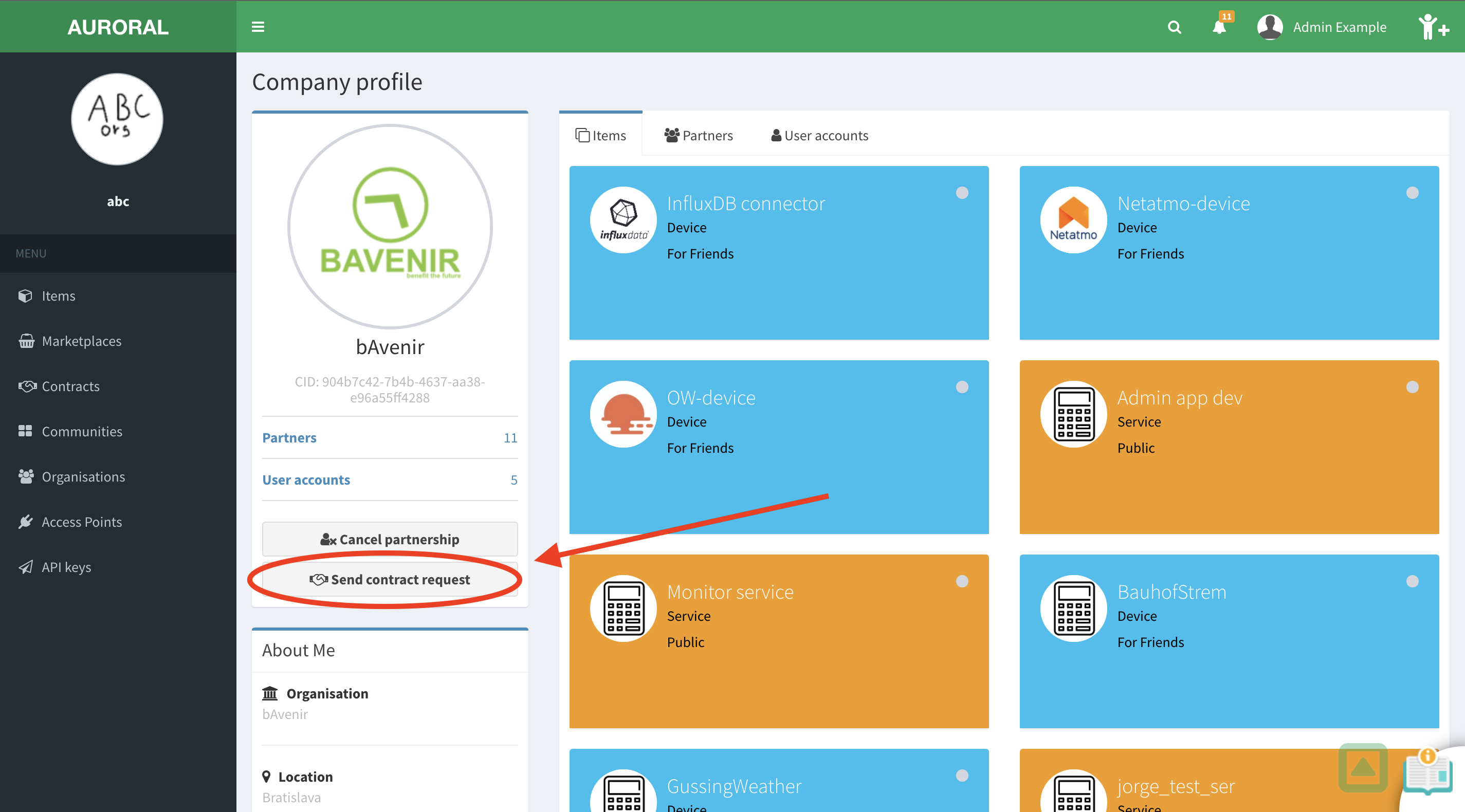
In order for contract between you and your partner to be established, the other party will have to accept the contract request.
Manage items in a contract
Device owner or service provider role required
Only users with device owner or service provider role are allowed to manage items in contracts.
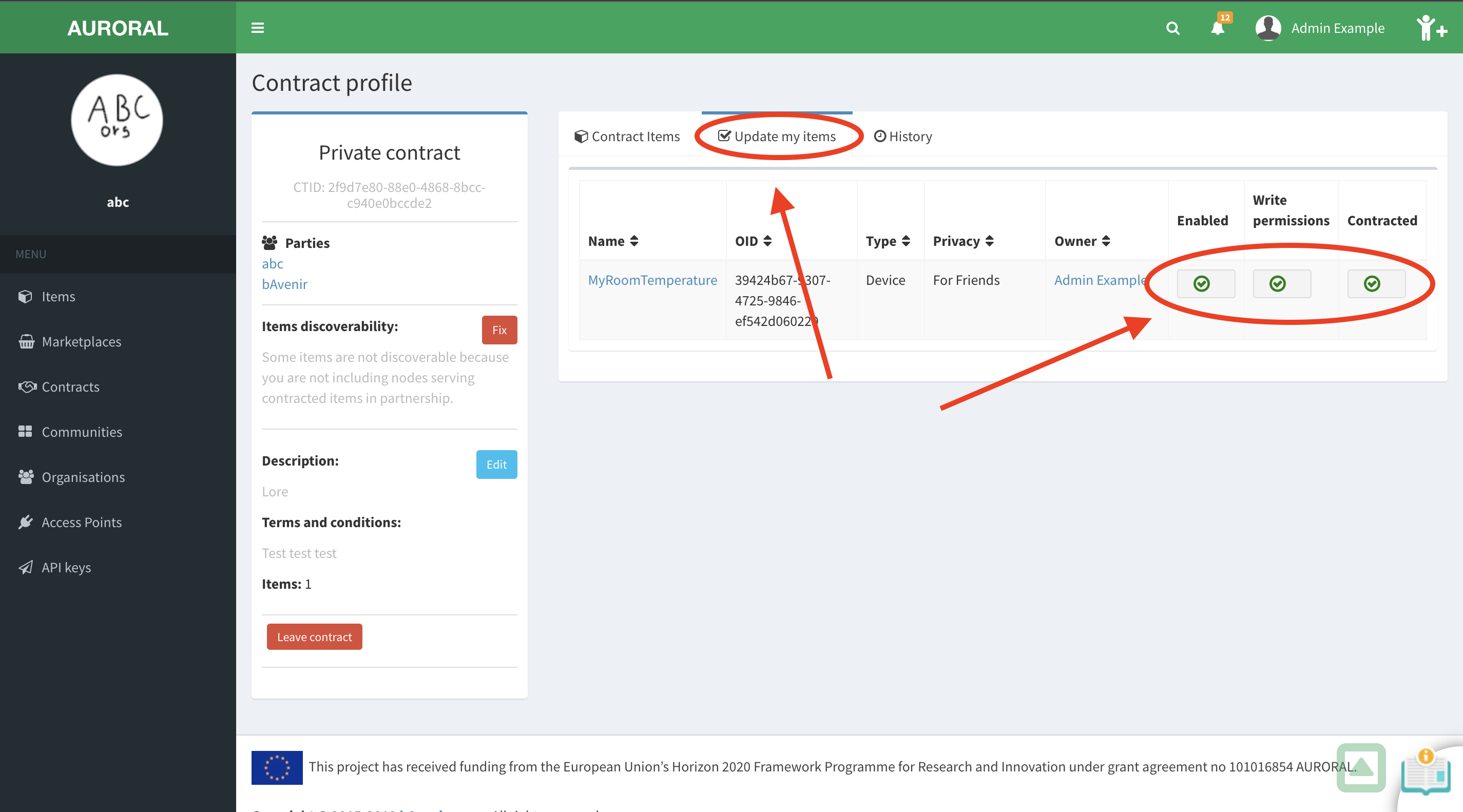
To add or remove items from contract you have to open the contracts section, find the contract you want to edit and select it:
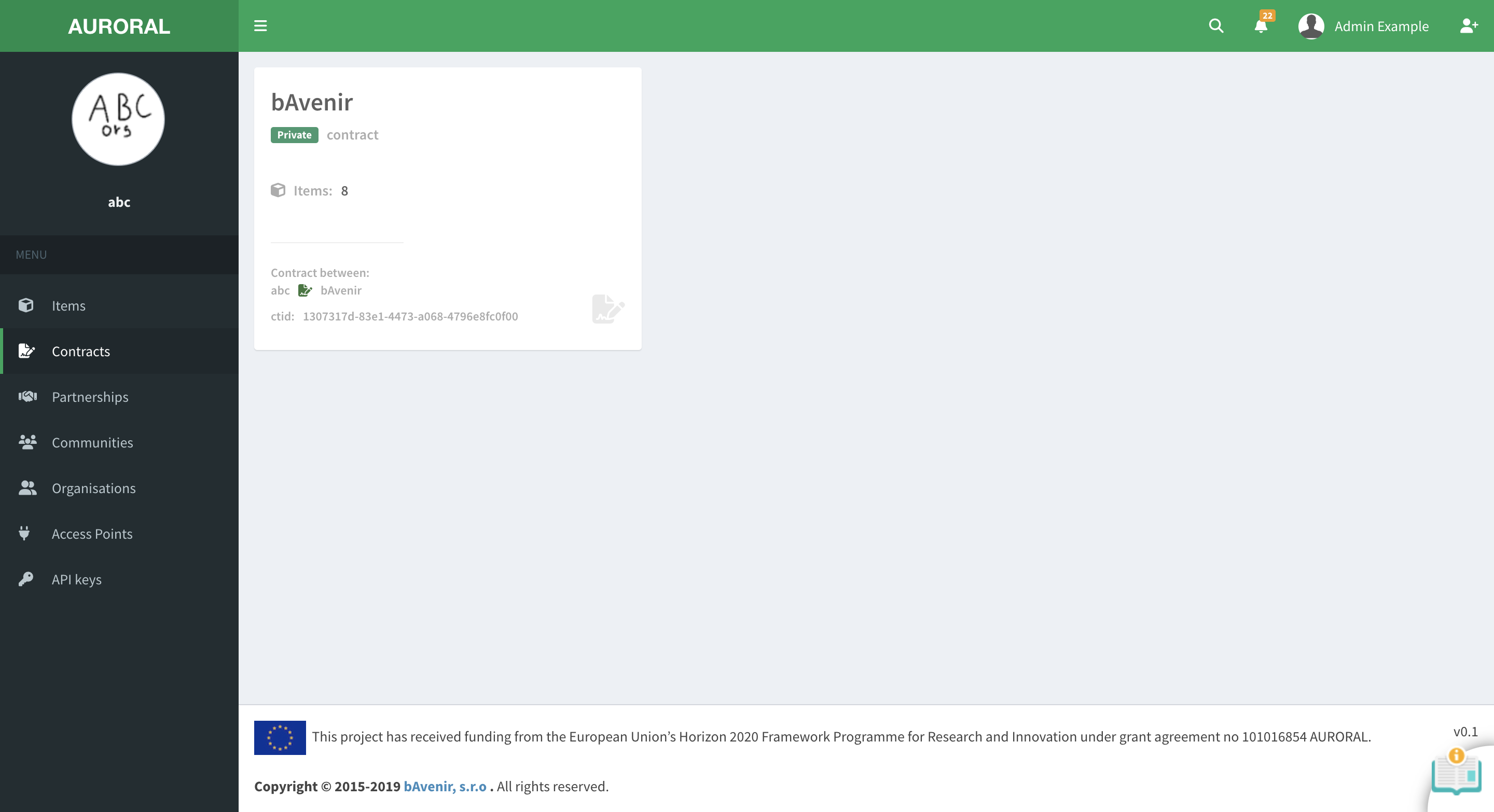
This will take you to the contract's detail page. Here you will have to open the Update my items. To add or remove item from the contract, simply press the add or remove button: