Offering a service
Service provider
In this scenario we want to showcase how to return data or a response to a query by using a service. There are two basic examples:
-
Using a service to expose a static dataset. Using an API to access the data through AURORAL.
-
Using a service that expects an input, process the input and return a response.
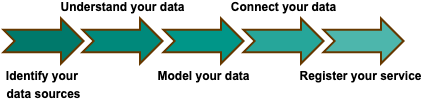
This are the steps to be followed:
-
Create a service: You need to have a service ready to provide some value to AURORAL.
-
Understand your data: Have a look at a snapshot of your data. Decide if you want to use it all or part of it and try to identify relevant information about it such as type (number/string), units of measurement, properties (range, longitude, latitude...), etc.
-
Model the response: The response of your service needs to be modelled in RDF. AURORAL offers a series of ontologies that can be used to model and add context to various types of data. Here you can find the list of AURORAL ontologies.
-
Connect your data: I have a service, how can I connect it to AURORAL. In this case we do not need an adapter, though it could also be used. As services are software, your application can be updated with a module to interact with AURORAL. The functionalities of this new module are two, (1) map the data to the selected ontology and (2) make the service accessible to the AURORAL Node.
-
Register your service: Finally, you need to tell AURORAL where to find your data. For this purpose you will have to register your service using the AURORAL Node. The registration is perform with a type of document called Thing Description, in it you describe your service main and info and the URIs for accessing the data that your adapter is making available.
Example
For demostration purposes we will use the following example. We have an REST API service with an endpoint which returns closest cell towers in the vicinity of a user's location. We want to make this endpoint available in AURORAL so that we can use it in our applications.
Create a service
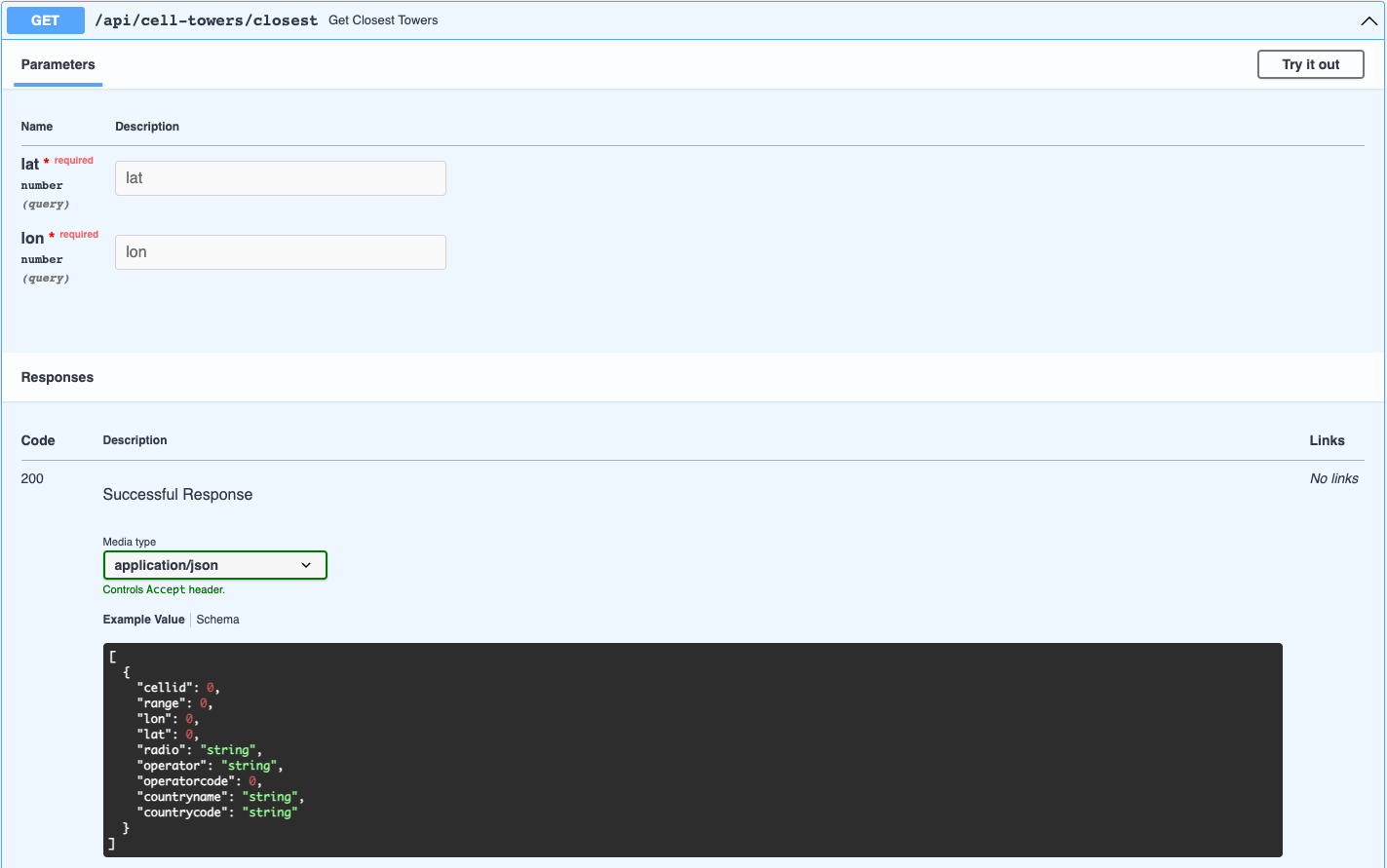
For this example we have created a microservice and we are running it on the localhost:8000. This service is build on top of the database which contains the data about the cell towers. Endpoint to retrieve 5 closest cell towers is /api/cell-towers/closest with the following OpenAPI specification:
Understand your data
As we can see the endpoint is expecting a lat and lon, which in our case is a location of a user requesting the information. The data is then returned in JSON format and it looks like this:
[
   {
      "cellid": 255742873,
      "range": 1977,
      "lon": 17.1405464,
      "lat": 48.1501398,
      "radio": "UMTS",
      "operator": "O2 Slovakia",
      "operatorcode": 6,
      "countryname": "Slovakia",
      "countrycode": "SK"
   },
   {
      "cellid": 77158166,
      "range": 1000,
      "lon": 17.14112,
      "lat": 48.151193,
      "radio": "LTE",
      "operator": "O2 Slovakia",
      "operatorcode": 6,
      "countryname": "Slovakia",
      "countrycode": "SK"
   },
   {
      "cellid": 2608949,
      "range": 1000,
      "lon": 17.139924,
      "lat": 48.149887,
      "radio": "LTE",
      "operator": "Orange Slovensko",
      "operatorcode": 1,
      "countryname": "Slovakia",
      "countrycode": "SK"
   },
   {
      "cellid": 125492,
      "range": 1000,
      "lon": 17.140036,
      "lat": 48.149654,
      "radio": "LTE",
      "operator": "Slovak Telekom",
      "operatorcode": 2,
      "countryname": "Slovakia",
      "countrycode": "SK"
   },
   {
      "cellid": 2608947,
      "range": 1000,
      "lon": 17.142115,
      "lat": 48.15131,
      "radio": "LTE",
      "operator": "Orange Slovensko",
      "operatorcode": 1,
      "countryname": "Slovakia",
      "countrycode": "SK"
   }
]
The ammount of data is not big, but it is enough to demonstrate how to integrate it to AURORAL. We can see that the data is organized in a JSON object with several fields. Here is a table with the data types and description:
| Field | Type | Description |
|---|---|---|
| cellid | int | unique id of the cell tower |
| range | int | range of tower (meters) |
| lon | float | location of tower (longitude) |
| lat | float | location of tower (latitude) |
| radio | string | name of the technology |
| operator | string | name of the operator |
| operatorcode | int | code of the operator (MNC) |
| countryname | string | name of the country |
| countrycode | string | code of the country (ISO) |
Model your data
Now that we know what data we have, we need to model it in RDF. For this purpose we will check the AURORAL ontologies and start looking for best match for our properties: cellid, range, lon, lat, radio, operator, operatorcode, countryname, countrycode.
In this case the best match is the AURORAL CellTower ontology.
What if one or more of my properties are missing from the ontologies?
Sometimes there is no matching ontology for some of the properies you are trying to describe. This properties then need to be excluded from the final response since they can not be described in RDF format.
Let's start modeling. First we will have to import the ontology. We do this using @context keyword which is an array. This will import all the keywords from AURORAL CellTower ontology:
{
  "@context": [
    "https://auroralh2020.github.io/auroral-ontology-contexts/cellTowers/context.json"
  ]
}
We are finnaly ready to start defining our properties. Based on the understanding of our data and the imported ontologies we can model the cell tower properties like this:
// FIRST CELL TOWER:
{
  "cellId": "461548",  // <- cellid (cast: int -> string)
  "hasRange": {
     "range": "2052" // <- range (cast: int -> string)
  },
  "hasOperator": {
     "operatorId": "1", // <- operatorcode (cast: int -> string)
     "operatorName": "Orange Slovensko" // <- operator
  },
  "country": {
     "code": "SK", // <- countrycode
     "name": "Slovakia" // <- countryname
  },
  "location": {
     "lat": 48.148721, // <- lat
     "long": 17.154939 // <- lon
  },
  "providesNetwork": {
     "@type": "UMTS" // <- radio
  }
}
Now we need to do the same for the rest of the cell towers and put everything together with the @context to get the final result:
[
  // FIRST CELL TOWER:
  {
    "@context": "https://auroralh2020.github.io/auroral-ontology-contexts/cellTowers/context.json",
    "cellId": "461548",
    "hasRange": {
      "range": "2052"
    },
    "hasOperator": {
      "operatorId": "1",
      "operatorName": "Orange Slovensko"
    },
    "country": {
      "code": "SK",
      "name": "Slovakia"
    },
    "location": {
      "lat": 48.148721,
      "long": 17.154939
    },
    "providesNetwork": {
      "@type": "UMTS"
    }
  },
  // SECOND CELL TOWER:
  {
    "@context": "https://auroralh2020.github.io/auroral-ontology-contexts/cellTowers/context.json",
    "cellId": "77175573",
    "hasRange": {
      "range": "2816"
    },
    "hasOperator": {
      "operatorId": "6",
      "operatorName": "O2 Slovakia"
    },
    "country": {
      "code": "SK",
      "name": "Slovakia"
    },
    "location": {
      "lat": 48.148685,
      "long": 17.1562553
    },
    "providesNetwork": {
      "@type": "LTE"
    }
  },
  // THIRD CELL TOWER:
  {
    "@context": "https://auroralh2020.github.io/auroral-ontology-contexts/cellTowers/context.json",
    "cellId": "255732702",
    "hasRange": {
      "range": "2457"
    },
    "hasOperator": {
      "operatorId": "6",
      "operatorName": "O2 Slovakia"
    },
    "country": {
      "code": "SK",
      "name": "Slovakia"
    },
    "location": {
      "lat": 48.1493839,
      "long": 17.1556414
    },
    "providesNetwork": {
      "@type": "UMTS"
    }
  },
  // FOURTH CELL TOWER:
  {
    "@context": "https://auroralh2020.github.io/auroral-ontology-contexts/cellTowers/context.json",
    "cellId": "255742702",
    "hasRange": {
      "range": "858"
    },
    "hasOperator": {
      "operatorId": "6",
      "operatorName": "O2 Slovakia"
    },
    "country": {
      "code": "SK",
      "name": "Slovakia"
    },
    "location": {
      "lat": 48.1489738,
      "long": 17.1571062
    },
    "providesNetwork": {
      "@type": "UMTS"
    }
  },
  // FIFTH CELL TOWER:
  {
    "@context": "https://auroralh2020.github.io/auroral-ontology-contexts/cellTowers/context.json",
    "cellId": "541989",
    "hasRange": {
      "range": "423"
    },
    "hasOperator": {
      "operatorId": "2",
      "operatorName": "Slovak Telekom"
    },
    "country": {
      "code": "SK",
      "name": "Slovakia"
    },
    "location": {
      "lat": 48.1494822,
      "long": 17.1549103
    },
    "providesNetwork": {
      "@type": "UMTS"
    }
  }
]
Connecting your data
To connect your data to AURORAL you will have to make the respose, modeled in the previous step, accessible and tell the Node where to GET it. This will ensure that every time someone wants to access or discover your data in the AURORAL, the platform knows where to look for it and understands the context of the data.
To do so you create a module that will take care of generating the respose and populating the proper fields with the data. In AURORAL this modules are called the Adapters. There are multiple existing generic Adapters that can be used to automate this process but for this example we will be creating a custom adapter.
Adapters
Generic adapters like Node-red are good way to simplify the process of connecting and registering the item. Even though they can be used to register almost any item, the disadvantage of using the generic adapters is that they usualy put an overhead cost for your system resources. To avoid this you can build your custom adapter that will handle the RDF modeling and data populating. To find out more about the Adapters please reffer to Adapters section.
Since we are the owners of the service we can just extend the API of our service with the new endpoint called /api/cell-towers/closest/rdf-mapping with the following OpenAPI specification:
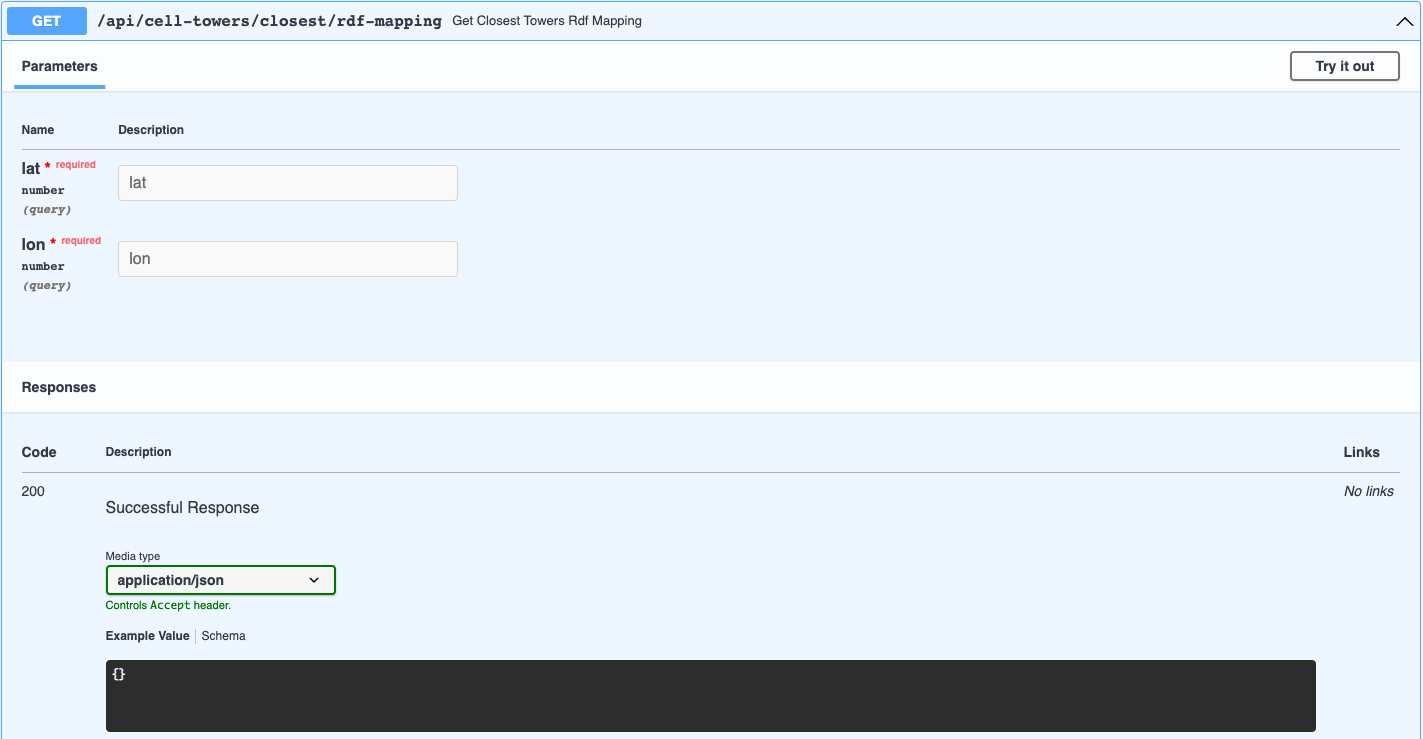
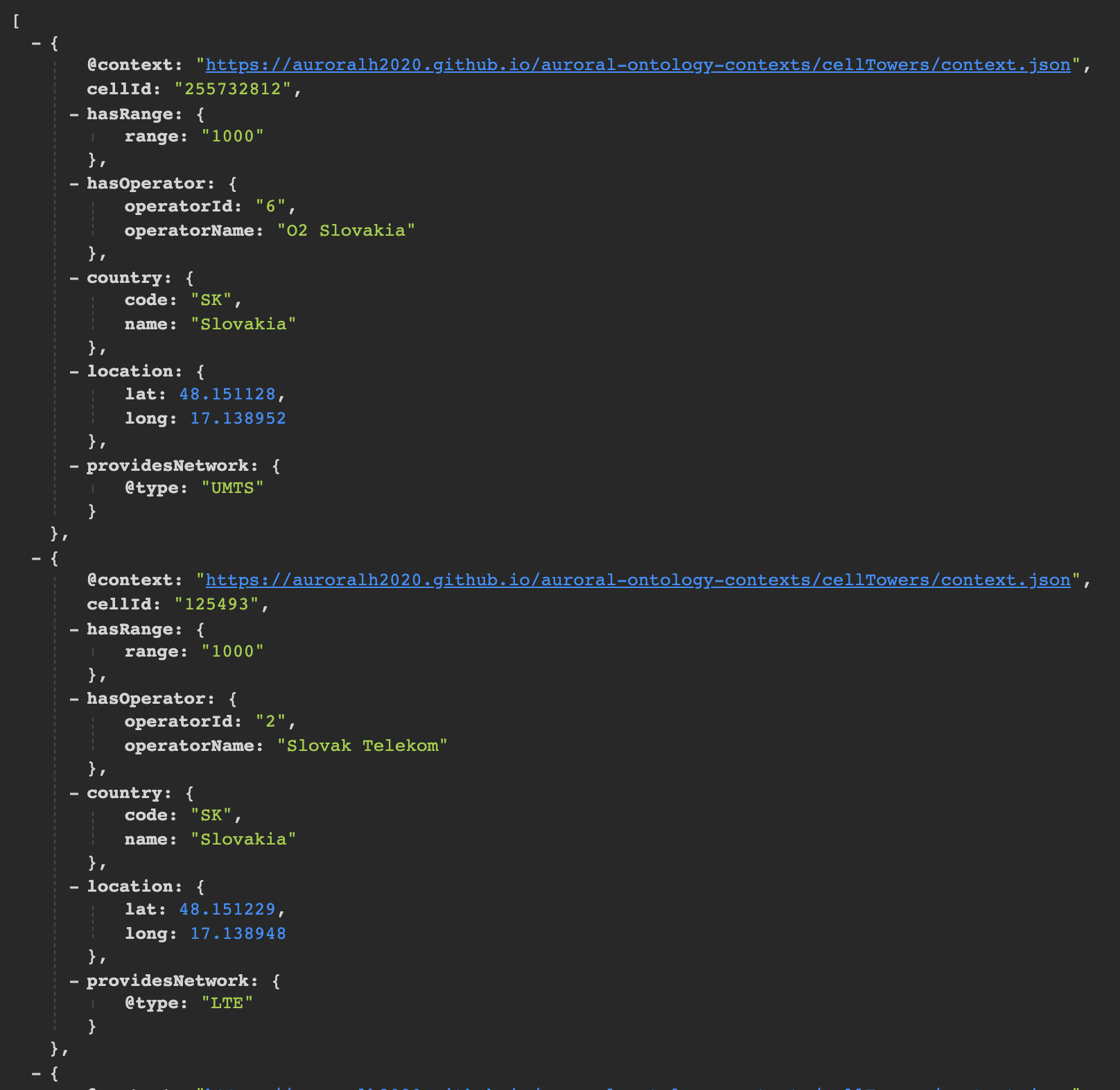
This new enpoint will return the same respose as /api/cell-towers/closest, only now enriched with RDF based on our modeled response form previous step:
http://localhost:8000/api/cell-towers/closest/rdf-mapping?lat=48.151135386739156&lon=17.13893244921691
Adapter needs to be accessible!
Please don't forget that Node needs to be able to access the adapter that is taking care of the mapping. For example if your adapter is running on localhost of the machine, please make sure the Node is also running on the same machine or can reach this machine over the DNS.
Register your service
To register the service you will have to provide the Thing Description of the service to the Node.
Below is the Thing description for our service. To find out step-by-step tutorial how to generate this example please visit here:
{
  "@context": [
      "https://www.w3.org/2019/wot/td/v1",
      "https://auroralh2020.github.io/auroral-ontology-contexts/core/services.json"
  ],
  "@type": "Service",
  "adapterId": "bavenir-celltower-service",
  "title": "Closest Cell Towers Service",
  "description":
    "Cell tower data service"
  ,
  "securityDefinitions": {
    "nosec_sc": {
      "scheme": "nosec"
    }
  },
  "security": "nosec_sc",
  "language": "eng",
  "place": "Slovakia",
  "serviceFree": [ true ],
  "applicableGeographicalArea": "Europe",
  "hasDomain": "Mobility",
  "hasSubDomain": "Coverage",
  "hasFunctionality": "Only read",
  "provider": "bAvenir",
  "currentStatus": "Available",
  "properties": {
    "gettowers": {
      "type": "array",
      "title": "Get towers",
      "readOnly": true,
      "description": "Returns 5 closest cell towers based on user's location [lat,lon]",
      "forms": [
        {
          "href": "http://localhost:8000/api/cell-towers/closest/rdf-mapping"
        }
      ],
      "items": {
        "type": "object",
        "@type": "https://auroral.iot.linkeddata.es/def/cell#CellTowers"
      }
    }
  }
}
As for the forms array field, this is where all the enpoints (in our case only one endpoint) for accessing the data should go. Since we are using the custom adapter, we have to provide the url where the Node can access our enriched data using the href field.
Service store
Every public service you register in the AURORAL platform is automaticly avaliable in Service store. If you want to know more about how the Service store works, please reffer to our short tutorial video.
Now when we have our data source described in a Thing description, we can register it in AURORAL. To do this we expect your Node is installed with Custom adapter extension and is running.
How to install the Custom adapter extension?
When you are insatlling new Node, you have an option to install Custom adapter extension. To find out how to do this please reffer to our Getting started - install a Node section.
To rerister the service you need to use the Node's API. Navigate to url wehere the Node is running. If you have been following the tutorials we provide your node should be running on localhost:81.
The endpoint you need to use is /api/registration. Just replace the td: {} in body with Thing Description from previous step and press Execute:
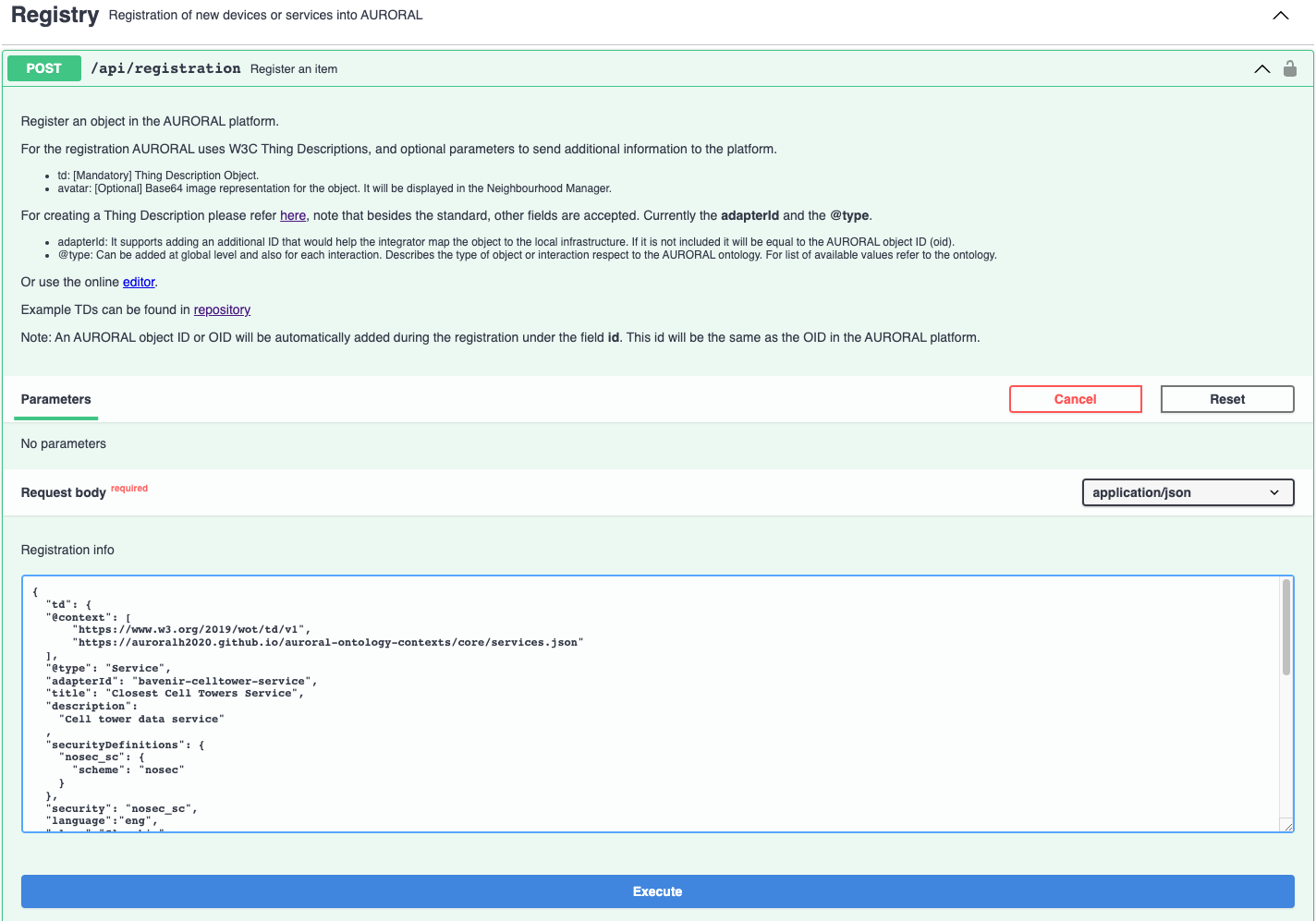
"avatar": "string"
This field is not mandatory to provide when you are registering the service but if you are not providing any value you should remove it.
After a while we can see that our device is registered and after enabling it can be used in AURORAL.
Do not see the device?
Maybe you forgot to enable the device. If you don't enable device, it will not be visible in AURORAL. More about enabling devices can be found here.