Using data from AURORAL
Data consumer
In this scenario we want to use a service to collect data from other AURORAL Nodes. Then this data can be used to be processed and offered back into AURORAL, to be stored or to be displayed in a UI for instance.
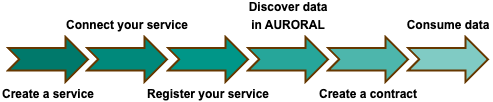
This are the steps to be followed:
-
Create a service: You need to have a service ready to provide some value to AURORAL.
-
Register your service: Finally, you need to tell AURORAL where to find your data. For this purpose you will have to register your service using the AURORAL Node. The registration is perform with a type of document called Thing Description, in it you describe your service main and info and the URIs for accessing the data that your adapter is making available.
-
Connect your service: I have a service, how can I connect it to AURORAL. In this case we do not need an adapter, though it could also be used. As services are software, your application can be updated with a module to interact with AURORAL. In case when you just want to use the data and you are not exposing any data to AURORAL, you just need to call the API for requesting the data from your service.
-
Discover data in AURORAL: Now that you have your service registered, you can discover the data that is available in AURORAL. You can use the API calls or the Neighbourhood Manager to find the data that you are interested in.
-
Create a contract: As all the data in AURORAL is private by default, you need to have a contract with the owner of the data. This contract will allow you to access the data and use it in your service.
-
Consume data: Now that you have a contract, you can access the data. You can use the API calls to access the data
Example
Create a service
In this example we will use tool service-data-connector developed by bAvenir. This tool can be used to collect data from different sources defined by the user. The data is then stored in a choosen database - InfluxDB in our case.
Register your service
Requirements:
- Auroral node
- InfluxDB running
We register our service with following TD to AURORAL node:
{
  "@context": [
    "https://www.w3.org/2019/wot/td/v1",
    "https://auroralh2020.github.io/auroral-ontology-contexts/core/services.json"
  ],
  "@type": "Service",
  "title": "toInfluxService",
  "description": "Service - Influx data collector",
  "provider": "bAvenir",
  "currentStatus": "Available",
  "hasDomain": "Environment",
  "hasSubDomain": "Indoor",
  "hasFunctionality": "Only read",
  "serviceFree": true,
  "numberOfDownload": 1,
  "versionOfService": "1.4",
  "language": "en",
  "place": "Bratislava",
  "securityDefinitions": {
    "nosec_sc": {
      "scheme": "nosec"
    }
  },
  "security": "nosec_sc ",
  "properties": {}
}
We can confirm registration by checking the list of registered items in Neighbourhood Manager.
Connect your service
You service can access data and metadata from AURORAL by using the Node's API.
For actual data access, we will use API call /api/properties/{id}/{oid}/{pid}.
- id is the id of my service
- oid is the id of the owner of the data
- pid is the id of the property that I want to access
Our tool is already prepared to interact with AURORAL devices, so we just need to specify urls for concrete devices and properties. Let's move this step when we have a contract with the owner of the data and we know the ids of the devices and properties.
Discovering data in AURORAL
In this example we found desired data in one of partner's devices. We can retrieve TD of the device to check what data are available.
{
  "@context": [
    "https://www.w3.org/2019/wot/td/v1",
    {
      "adp": "https://auroral.iot.linkeddata.es/def/adapters#",
      "om": "http://www.ontology-of-units-of-measure.org/resource/om-2/",
      "geo": "http://www.w3.org/2003/01/geo/wgs84_pos#"
    }
  ],
  "security": [
    "nosec_sc"
  ],
  "securityDefinitions": {
    "nosec_sc": {
      "scheme": "nosec"
    }
  },
  "geo:location": {
    "geo:lat": "48.17422",
    "geo:long": "17.18163"
  },
  "title": "TemperatureSensor1",
  "@type": "adp:Thermometer",
  "description": "Room temperature sensor",
  "properties": {
    "room_temperature": {
      "title": "room_temperature",
      "description": "temperature in the room",
      "@type": "adp:AmbientTemperature",
      "unit": "om:degree_Celsius",
      "readOnly": true,
      "type": "number",
      "forms": [
        {
          "op": "readproperty",
          "href":"http://node-red:1250/api/property/f8041311-d45f-4b35-a046-e6e823a4b13c/room_temperature"
        }
      ]
    }
  },
  "adapterId": "t43freas",
  "id": "f8041311-d45f-4b35-a046-e6e823a4b13c"
}
Create a contract
So we now that we want to get room_temperature property from TemperatureSensor1 and as it matches our requirements. we can create a contract with the owner of the device.
Process of creating a contract is described in Relationships section. In next steps we assume that we have a contract with the owner of the device.
Accessing partner's data
During data access, we need to have also access to metadata of the device. Result of that is, that bot involved nodes needs to be shared in partnership or community (if items are not public). More information about relationships here
Consume data
This is format of the data that we get from the device:
{
    "@context": [
      "https://auroralh2020.github.io/auroral-ontology-contexts/adapters/context.json",
      {
        "om": "http://www.ontology-of-units-of-measure.org/resource/om-2/"
      },
      {
        "oid": {
          "@id": "rdfs:label"
        },
        "iid": {
          "@id": "rdfs:label"
        }
      }
    ],
    "@type": "adp:Thermometer",
    "oid": "f8041311-d45f-4b35-a046-e6e823a4b13c",
    "iid": "temperature",
    "measurement": [
      {
        "property": "adp:AmbientTemperature",
        "value": 22.28,
        "isMeasuredIn": "om:degree_Celsius",
        "timestamp": "2023-02-28T09:18:09.610Z"
      }
    ]
  }
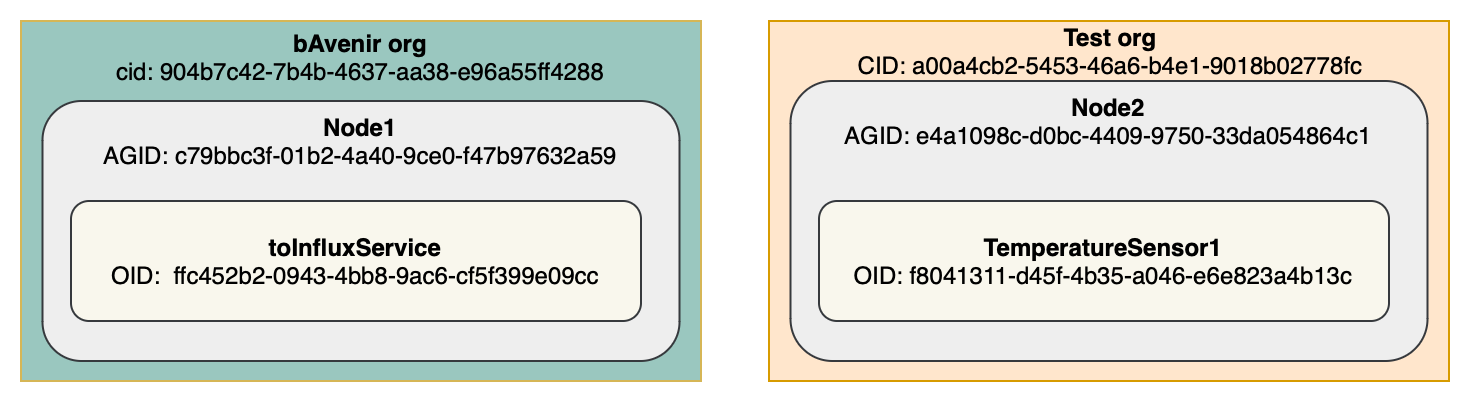
There will be lot of ids in next steps, so to make it easier, we will use the following drawing to explain them:
Now we can configure and start service-data-connector.
SERVICE_ENV=development
SERVICE_IP="0.0.0.0"
DS_FILE="ds.json"
DATA_CONNECTOR_PORT="1444"
DB_TYPE=influx
INFLUXDB_USERNAME="admin"
INFLUXDB_URL=http://myhost:8086
INFLUXDB_PASSWORD="secretPassword"
INFLUXDB_ORG="myorg"
INFLUXDB_BUCKET="bucket0"
INFLUXDB_TOKEN="my_generated_token"
According to ids in the drawing, we created this configuration file for service-data-connector:
{
  "ds": [
    {
      "enabled": true,
      "dsid": "myId123",
      "oid": "f8041311-d45f-4b35-a046-e6e823a4b13c",
      "agid": "90467c42-7b4b-4637-aa38-e96a554288",
      "cid": "904b7c42-7b4b-4637-aa38-e96a55ff4288",
      "iid": "room_temperature",
      "type": "read",
      "service": "ffc452b2-0943-4bb8-9ac6-cf5f399e09cc",
      "requestUrl": "http://myhost:81/api/properties/ffc452b2-0943-4bb8-9ac6-cf5f399e09cc/f8041311-d45f-4b35-a046-e6e823a4b13c/room_temperature",
      "monitors": "temperature",
      "frequency": 6000,
      "queryParams": {},
      "body": {}
    }
  ]
}
Most of the ids are self-explanatory, but there are some that need to be explained.
- requestUrl is the url of the property that we want to read:
http://myhost:81- this is the url of my node/api/properties- API route for reading propertiesfc452b2-0943-4bb8-9ac6-cf5f399e09cc- this is the id of the service that we want to use to read the dataf8041311-d45f-4bb8-9ac6-cf5f399e09cc- this is the id of the device that we want to read the data fromroom_temperature- this is the id of the property that we want to read
- dsid - unique id of the data source - generated by user
- frequency - how often the data should be read from the device (in milliseconds)
After the configuration is done, we can start the service-data-connector.
docker run -d --name service-data-connector -p 1444:1444 -v $(pwd)/ds.json:/service/ds.json -v $(pwd)/.env:/service/.env service-data-connector
If everything is configured correctly, we should see the following log in the service-data-connector container

And after some time, we should see the data in the influxdb database:
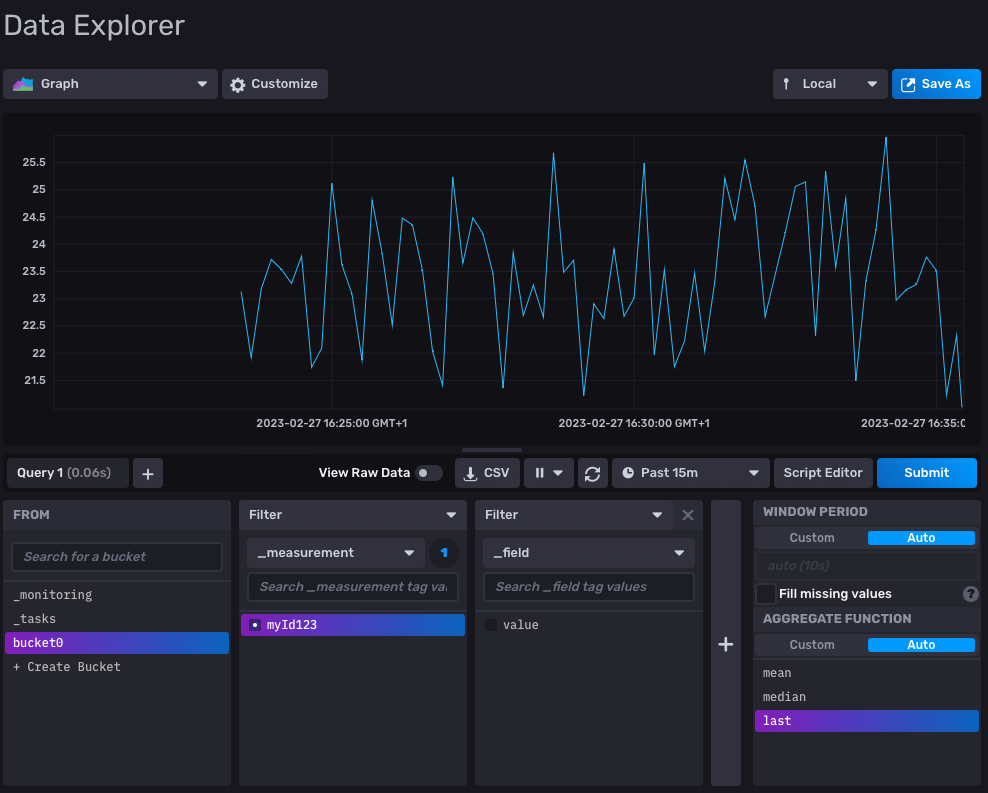
And that's it. We have successfully read data from the device and stored it in the database.